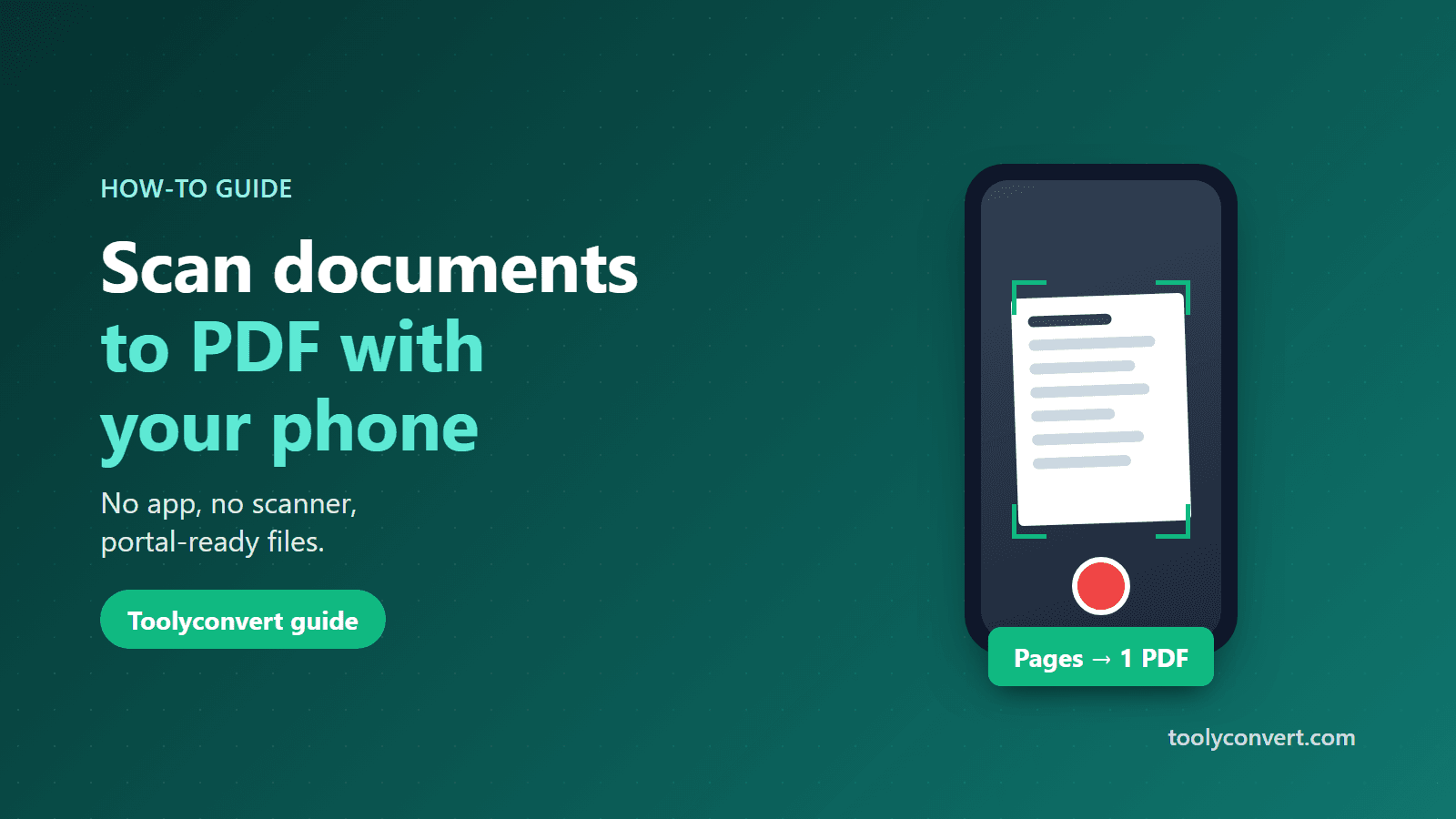
College admissions, job applications, bank forms and insurance claims all want the same thing: "upload a scanned copy". Most people do not own a scanner, and installing a scanning app just to send three pages feels like overkill. Your phone camera and a browser are enough.
This guide uses the free PDF Scanner, which captures pages with your camera and combines them into a single PDF.
Before you start: set up for a good scan
The quality of the PDF depends almost entirely on the photos. Two minutes of setup saves a rejected upload.
- Light: sit near a window in daytime, or under a bright ceiling light. Avoid a single lamp from the side, which leaves half the page dark.
- Shadows: hold the phone so your hand and the phone do not cast a shadow on the page. Moving the page slightly away from you usually helps.
- Background: put the page on a dark, plain surface (a table or a dark cloth). The white page stands out and looks neater.
- Flat pages: press folded letters flat; put a book on the corners of a curling page.
- Clean lens: wipe the camera lens. A fingerprint smudge makes everything look hazy.
Step by step
- Open PDF Scanner in your phone's browser and tap Start camera (or Upload photos if you already took them). Allow camera access when asked. The rear camera is used by default.
- Frame the first page. Hold the phone straight above the page, not at an angle, so the page fills most of the screen.
- Hold still and capture. The capture appears as a thumbnail below the viewfinder.
- Repeat for every page, in the order you want them in the PDF.
- Check the thumbnails. If a page is blurred or cut off, remove it and capture it again.
- Arrange the pages. Use the arrows under each thumbnail to change the order, and rotate any page that came out sideways.
- Choose an enhancement. Black & white turns text documents into clean black-on-white pages, even when the light was uneven; Colour boost suits pages with photos, stamps or coloured ink. The preview shows the effect on page 1.
- Pick the page size and file size (A4 for most Indian portals; "Smaller file" for strict upload limits), then create the PDF and download it.
On a laptop the same page uses the webcam; switch cameras if your device has more than one.
Make the PDF fit upload limits
Phone photos are large, and many portals limit uploads to 1 MB, 500 KB or even 200 KB.
- Compress the PDF with Compress PDF. See our guide on compressing a PDF without losing quality.
- Scan only what is asked. If the form wants the front page of a certificate, do not include the back.
- For exam photos and signatures, which have exact pixel and KB rules, use the dedicated exam photo and signature resizer instead.
Fix common problems
The page is sideways or upside down. Turn it the right way with Rotate PDF.
I need the pages in a different order or in one file with other PDFs. Combine files with Merge PDF.
I need to search or copy the text. A scan is a picture of the page. Run OCR PDF on it to add searchable text, or use Image to Text for a single page.
The camera does not start. Make sure you allowed camera access, close other apps that might be using the camera, and check that the address starts with https.
I already took the photos with the camera app. Choose Upload photos in the scanner and pick them from your gallery. You can mix uploaded photos and camera captures in one PDF.
Is it private?
The camera is only active while the page is open and you can revoke access in your browser settings at any time. The PDF is built entirely in your browser, so the photos never leave your device and nothing is uploaded or stored. For sensitive documents such as ID cards, scan only what the recipient needs, and send the PDF only to them.
Checklist before you upload
- Every page is there, in the right order.
- Text is readable when you zoom in, including small print.
- No fingers, shadows or table edges cover the content.
- The file size is under the portal's limit.
- The file name says what it is, for example "Ravi-Kumar-Marksheet-Class-12.pdf".
Summary
To scan documents to PDF with your phone, open PDF Scanner, capture each page in good light with the phone held straight above it, check the thumbnails, and create the PDF. Compress it if the portal has a size limit, and run OCR if you need searchable text.