PDF Scanner
Scan paper documents into one PDF with your phone or laptop camera, or from photos you already took. Clean pages up with black & white or colour enhancement. Nothing is uploaded.
Used PDF Scanner? Share how it went to help others.
About this tool
PDF Scanner turns your phone or laptop camera into a document scanner, right in the browser. Tap Start camera and allow camera access: phones use the rear camera, you can switch cameras with one tap, and on phones that support it a flashlight button lights up dark pages. A page-shaped frame helps you line the document up, and every press of the shutter adds a page, with a counter so you know how many you have. Already took the pictures with your camera app? Choose Upload photos and pick them from your gallery or computer instead; you can also mix both. Every page appears as a thumbnail where you can move it left or right, rotate it a quarter turn, or delete it. Then choose how the scan should look: Original keeps the photo as it is, Colour boost lifts grey paper towards white and darkens the ink, Grayscale gives a clean, smaller file, and Black & white turns text documents into crisp black-on-white pages that look like they came from a real scanner, even when the light was uneven. A live preview shows the effect on page 1. Pick the page size (A4, US Letter or the same shape as the photo) and the file size (best quality, or a smaller file for portals with upload limits), then create the PDF. The PDF is built entirely in your browser, so your photos never leave your device, and it downloads as scanned-document.pdf with the page count and file size shown. There is no app to install and no sign-up. Scans are images, so the text cannot be selected; run OCR PDF on the result if you need to search or copy it.

Scan with your phone or webcam, or pick photos you already took.
Line the page up with the frame and press the shutter for every page.
Reorder, rotate or delete pages and choose Black & white, Colour boost or Grayscale.
Pick A4 or Letter and the file size, then download one PDF.
Black & white mode turns grey, unevenly lit photos into clean black-on-white pages.
Capture new pages or upload photos you already took, and mix both in one PDF.
Move pages left or right, rotate them and delete any that came out wrong.
Choose A4 or Letter pages and a smaller file option for strict portals.
Paper to PDF in a minute
Scan your Aadhaar, PAN or driving licence for an online form.
ExampleThe front and back of an ID card are captured as a two-page PDF.
Scan certificates for college and job applications.
ExampleClass 10 and 12 marksheets become one A4 PDF in Black & white for an admission portal.
Keep receipts for expense claims and warranties.
ExampleFuel and hotel bills from a trip are scanned into one PDF for reimbursement.
Send back a form you signed on paper.
ExampleA signed three-page form is scanned and emailed back the same day.
Share class or meeting notes as a single file.
ExampleTen pages of lecture notes are scanned with Colour boost and shared with classmates.
Send prescriptions and lab reports to a doctor.
ExampleA prescription and two lab reports are scanned for an online consultation.
Sharper, smaller, more useful scans
Scan near a window or under a bright light, and hold the phone so its shadow does not fall on the page. In a dark room, use the flashlight button.
Hold the camera straight above the page and line it up with the frame. The page is saved as photographed, so straight shots look best.
For letters, forms and certificates, Black & white gives the cleanest, most readable result; keep Colour boost for photos, stamps and coloured ink.
Choose "Smaller file" first. If a portal needs it even smaller, compress the PDF afterwards.
Open Compress PDFA scan is an image. Run OCR on it to search, select or copy the text.
Open OCR PDFSenior Software Engineer · Developer of Toolyconvert
Hemant developed PDF Scanner and tests it on desktop and mobile with real files. He is a senior software engineer from Dehradun, India, building websites since 2014, and designed and developed Toolyconvert end to end.
Last updated 3 November 2026
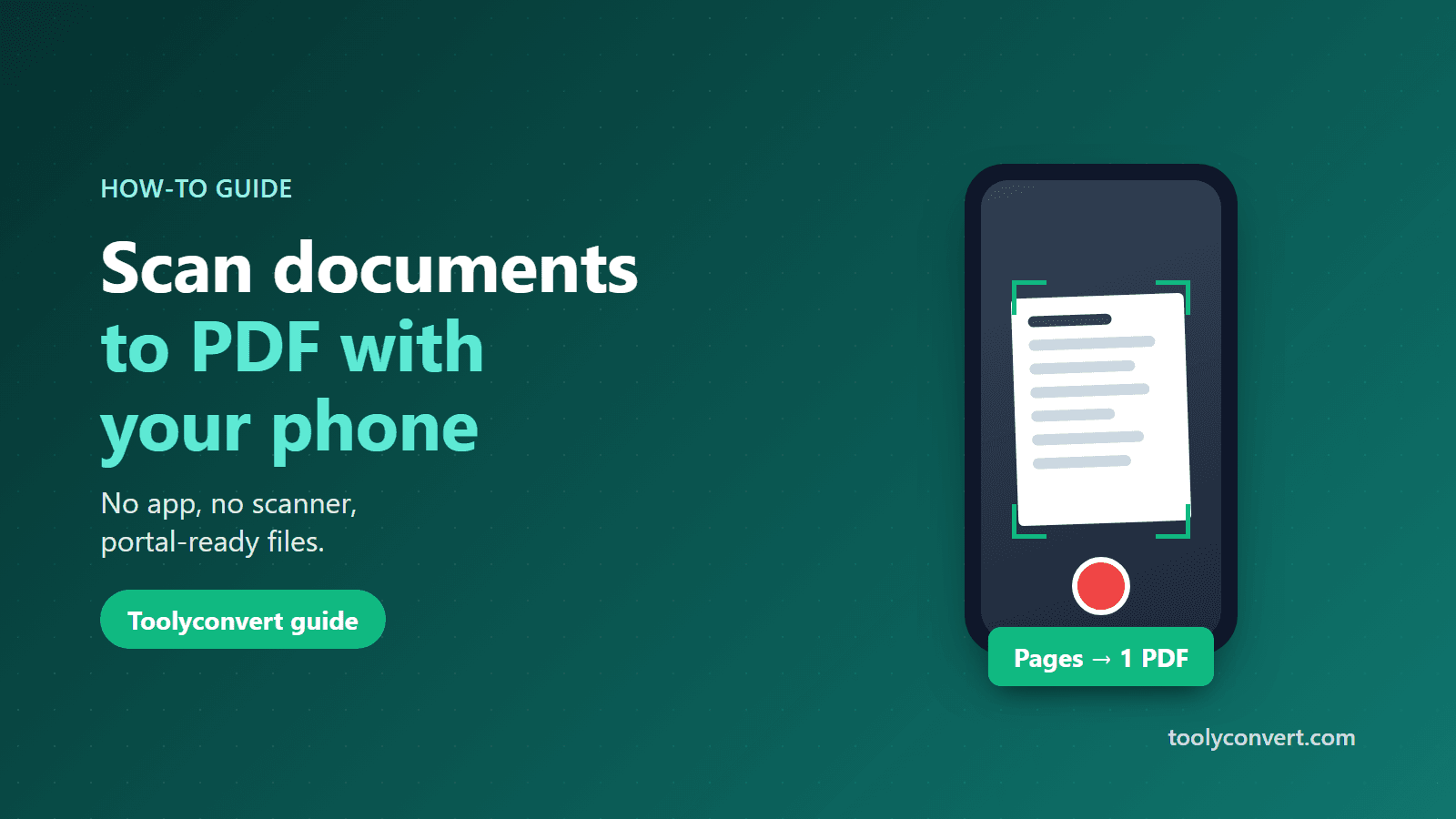
Turn paper into a clean multi-page PDF using your phone camera and a browser. Lighting, angle and file-size tips so portals accept your scan first time.
Read article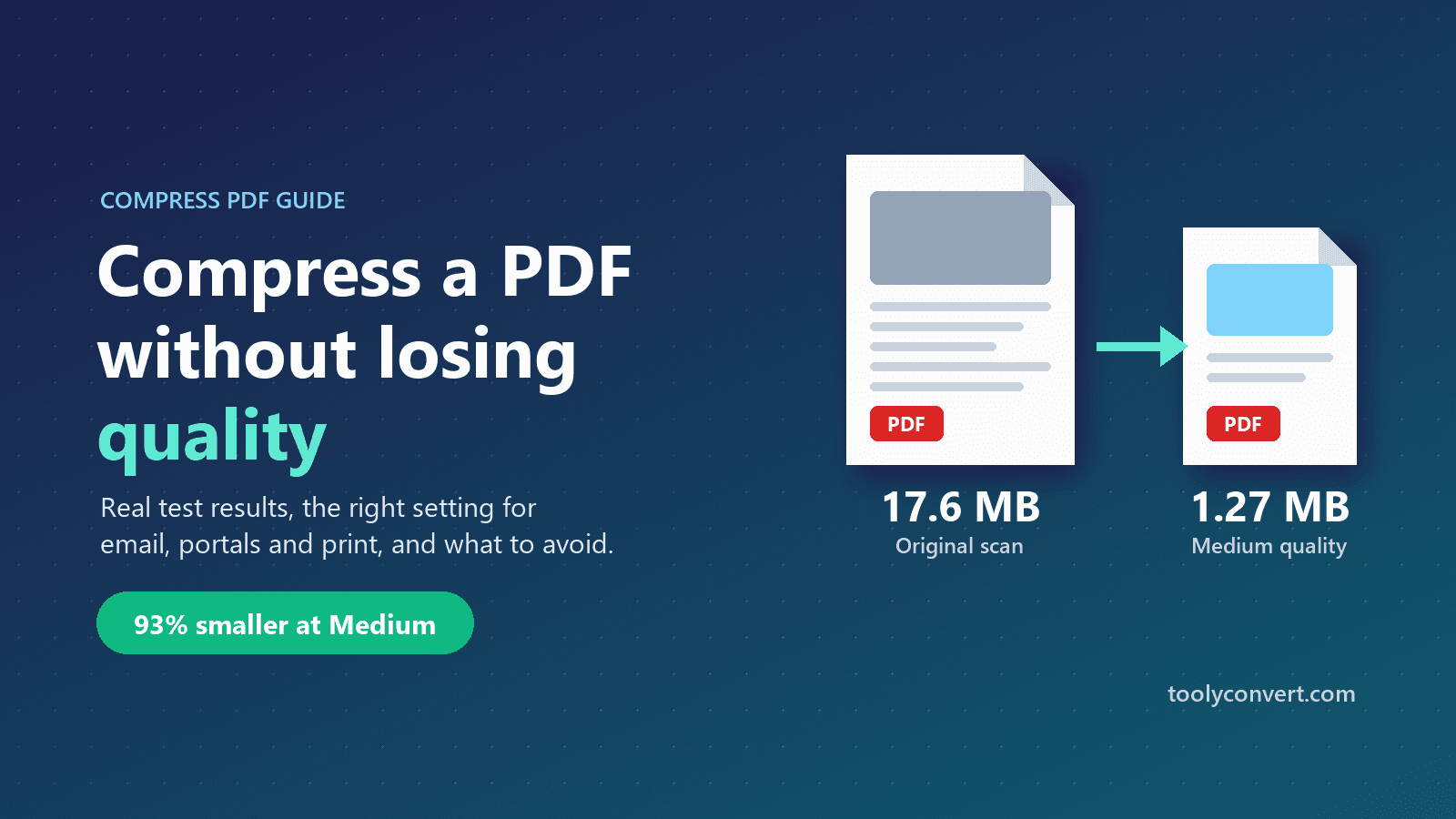
Why PDFs get so large, what compression really changes, which quality level to pick for email, portals or print, and our real test results: a 17.6 MB scan down to 1.27 MB.
Read article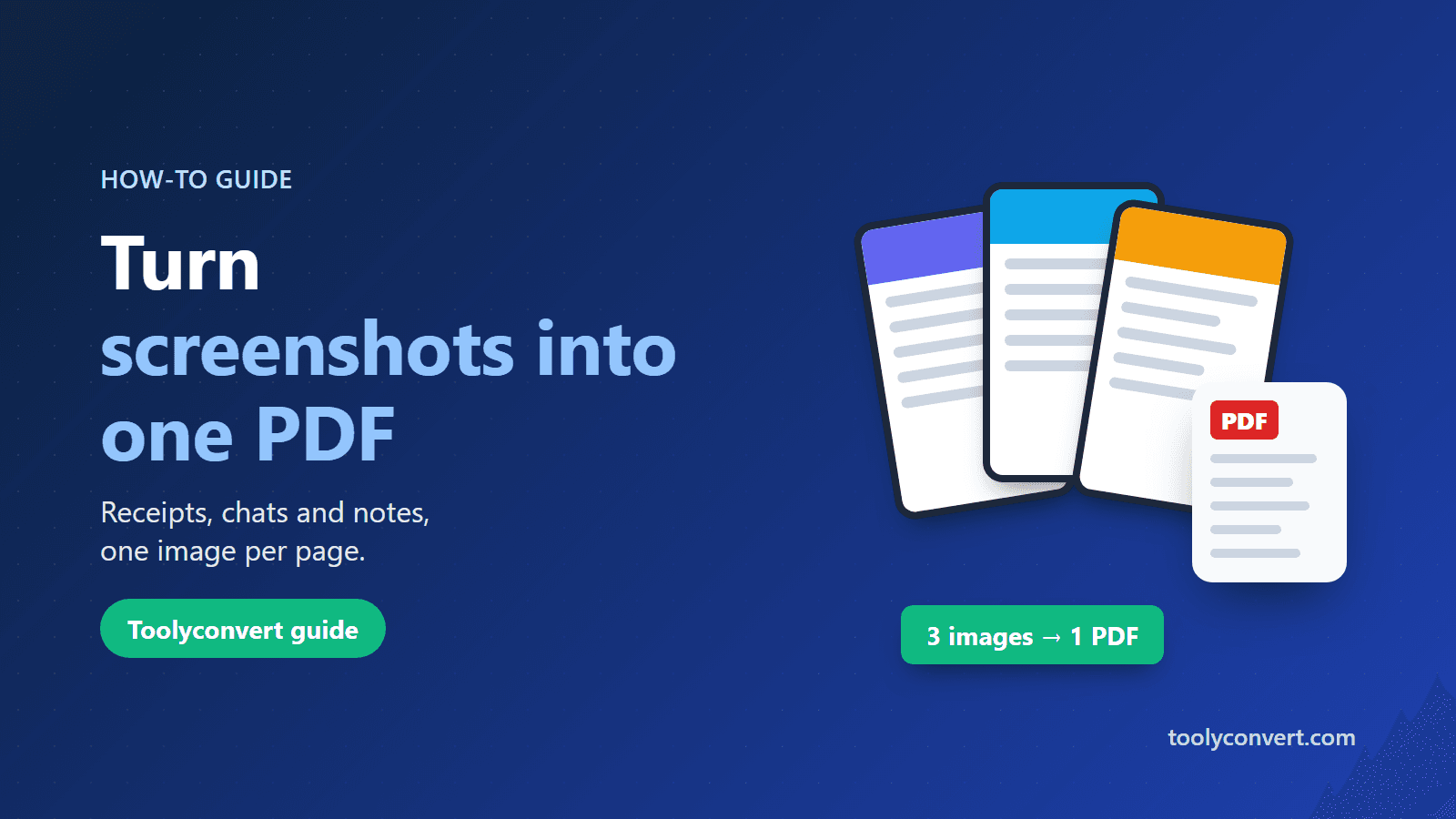
Put several screenshots into a single PDF, one image per page, using your browser’s Save as PDF. Includes print settings, ordering tips and phone steps.
Read article