Split PDF
PDF → PDFs
Separate a PDF into individual pages
Separate a PDF into individual pages
About this tool
Split PDF is a free, browser-based tool that lets you separate a PDF into individual pages or extract specific pages securely in your browser. Whether you need to extract a single page, split a PDF into multiple files, or remove unwanted pages, our tool handles it all with precision. It supports PDF → PDF splitting. Everything runs locally on your device, so your files are never uploaded to a server. There's no sign-up, no watermark, and no limit — just open Split PDF, select your options, and get perfectly separated pages instantly.
Drag and drop your PDF file or click to browse. Supports files up to 100MB.
Choose to split all pages, extract specific page ranges, or remove unwanted pages.
Get individual PDF files for each page or a single PDF with your selected pages.
Easily extract one or more specific pages from a PDF without affecting the rest of the document.
Separate every page in your PDF into individual files with one click.
Delete specific pages you don't need and keep only the ones you want.
Split PDF processes your data locally in the browser. Nothing is uploaded, tracked, or stored u2014 your files never leave your device.
Trusted by business professionals, students, and legal experts
Extract specific pages from large PDF documents for focused sharing or printing.
Example: Extract page 5 from a 50-page report to share only the relevant section with a colleague.
Split a PDF into separate files for easy distribution of individual pages to different team members.
Example: Split a training manual PDF so each department receives only their relevant section.
Delete blank pages, duplicates, or irrelevant pages from your PDF documents.
Example: Remove the cover page and table of contents from a PDF before sharing the content pages.
Split multi-page invoices into individual client invoices for separate processing.
Example: Split a batch invoice PDF into separate files for each client.
Extract individual chapters or sections from large PDF books or manuals.
Example: Split a textbook PDF into individual chapter files for focused study sessions.
Split PDF presentations into individual slides for customization or reuse.
Example: Extract specific slides from a PDF presentation to create a custom deck.
Split long contracts into manageable sections for easier review and signing.
Example: Split a 100-page contract into sections for different parties to review.
Split PDF portfolios into individual project files for targeted presentations.
Example: Extract individual design projects from your portfolio PDF to share specific work samples.
Split monthly report PDFs into weekly or daily sections for focused analysis.
Example: Split a monthly sales report into weekly segments for team meetings.
Split comprehensive deliverables into client-specific sections for targeted sharing.
Example: Extract only the relevant pages from a master deliverable PDF for each client.
Trusted by document management professionals worldwide
Enter specific page numbers (e.g., 1,3,5-8) for precise extraction of the pages you need.
Always preview the thumbnail images to verify you're extracting the correct pages.
Upload multiple PDFs and extract pages from all of them in one session to save time.
Create a dedicated folder for split PDFs to keep your extracted pages organized.
Use clear naming conventions for extracted files (e.g., 'Report_Page5.pdf') to stay organized.
Always keep a copy of the original PDF in case you need to re-split or extract different pages.
Use the page thumbnails to quickly identify which pages you need to extract.
After splitting, use our Compress PDF tool to reduce file sizes if needed for email or sharing. Compress PDF.
Use our Merge PDF tool to recombine split pages if you need to restore the original document. Merge PDF.
Use the thumbnail view to quickly identify and extract pages based on content type or relevance.
Featured on
Master the art of document organization. Learn how to merge reports, extract specific pages, and annotate directly in your browser.
Read article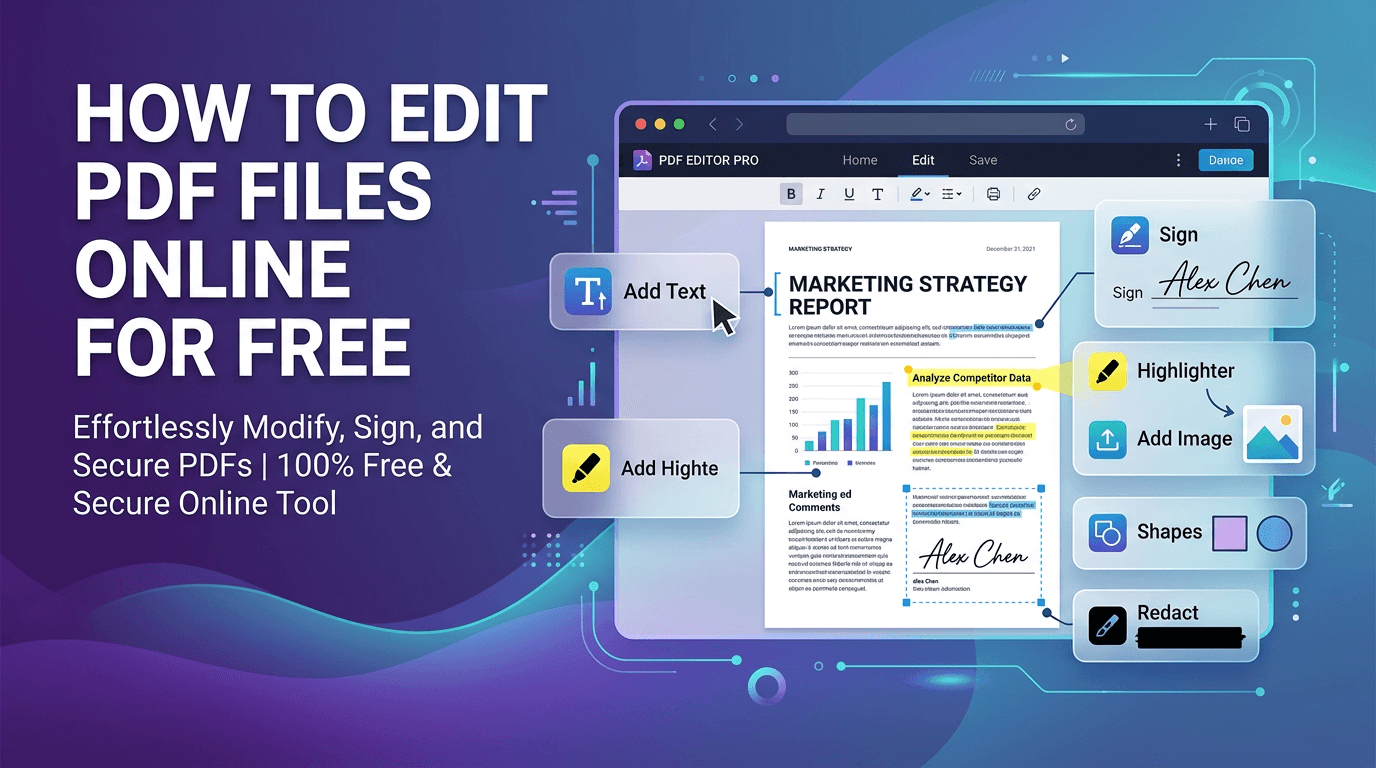
Edit PDFs directly in your browser: add text, images, annotations, signatures, and watermarks without any software installation.
Read articleDiscover the benefits of WebAssembly and client-side processing for sensitive documents.
Read article