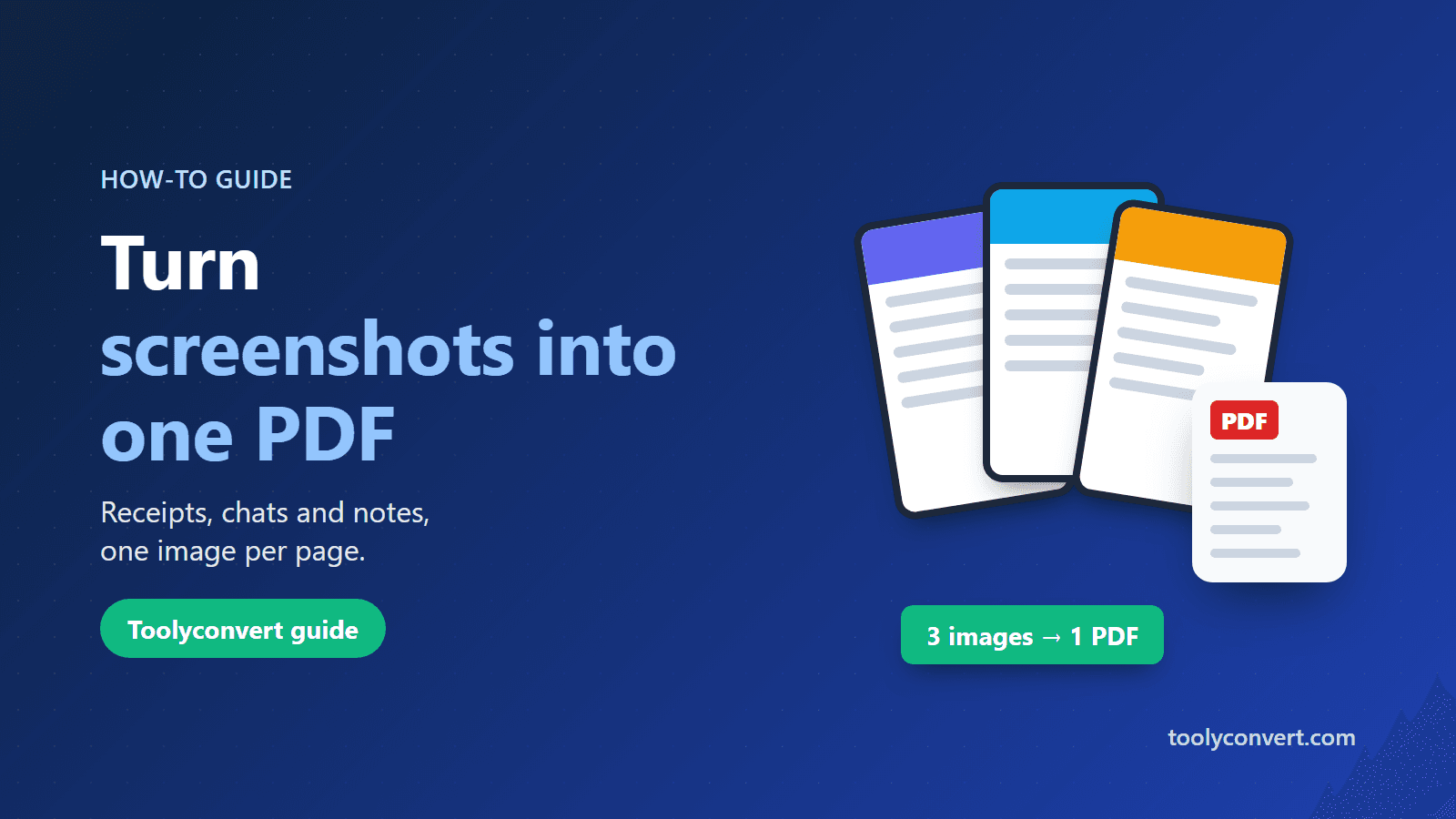
Screenshots pile up fast: payment confirmations, chat messages, booking details, slides from an online class, error messages for a support ticket. Sending them one by one is messy, and the person on the other end has to piece them together. One PDF with every screenshot in order is easier to send, store and print.
This guide shows how to combine screenshots into a single PDF with the free Screenshot to PDF tool, which lays out one image per page and uses your browser's own Save as PDF to create the file. The images stay on your device.
How it works
The tool places each selected image on its own page, scaled to the page width, and opens your browser's print window. In that window you choose Save as PDF instead of a printer, and the browser writes the PDF. Nothing is uploaded; the browser does the work.
Step by step
- Open Screenshot to PDF and select your screenshots. You can select several at once.
- The print window opens with one screenshot per page.
- Set the destination to "Save as PDF" (in some browsers it is called "Microsoft Print to PDF" or "Save to PDF").
- Adjust the settings (see below), then click Save and choose where to keep the file.
Print settings that make a cleaner PDF
- Margins: None or Minimum so the screenshots use more of the page.
- Headers and footers: off. Otherwise the browser may print a date, a page title and a web address on every page.
- Background graphics: on, if your screenshots have coloured backgrounds that look faded.
- Paper size: A4 is a safe default for documents you will send to offices in India.
Getting the order right
The pages follow the order in which your device hands over the selected files, which is usually by file name. To control the order:
- Rename the screenshots in sequence before selecting them, for example 01-payment, 02-confirmation, 03-receipt.
- Or select them in batches and make separate PDFs, then combine them later with Merge PDF.
Very tall screenshots
Each image is fitted to the page width. A long scrolling screenshot (a full chat or a full web page) can be taller than one page; the print engine then continues it on the next page. If that splits something important, crop the screenshot into two images first.
On a phone
- Android (Chrome): select the screenshots, and in the print screen choose Save as PDF as the printer, then tap the PDF button to save.
- iPhone (Safari): select the screenshots, and the print preview opens. Use the share button in the print preview to save the PDF to Files or send it.
Menu names vary a little between browser versions, but the idea is the same: print, and pick PDF instead of a printer.
Keep the file small
Screenshots from modern phones are large. If the PDF is too big to email or upload to a portal, compress the images first with Image Compressor, or compress the finished file with Compress PDF.
Privacy
Screenshots often show names, phone numbers, UPI IDs or order numbers. The tool keeps your images in your browser and does not upload them, but check what is visible before you share the PDF, and crop out anything the recipient does not need.
Summary
Select your screenshots in Screenshot to PDF, choose Save as PDF in the print window, turn off headers and footers, and save. Rename files in sequence to control the order, and split very tall screenshots if a page break lands in the wrong place.