You need to show a colleague how a form works, record a short lesson for students, or capture a bug so the developer can see exactly what happened. Installing screen recording software for a two-minute clip feels like overkill, and many free recorders stamp a watermark on the result.
Modern browsers can record the screen on their own. This guide shows how to record a window or your whole screen with your voice, trim the start and end, and save the video, using the free Screen Recorder. Nothing is uploaded: the video is created on your device.
Before you start
- Use a computer if you can. Screen recording in the browser is well supported on desktop Chrome, Edge and Firefox; on phones, browser support for sharing the screen varies.
- Test your microphone if you will narrate. A quick check with Mic Test saves you from a silent recording.
- Close what you do not want seen. Email, chat apps and notifications can appear in the recording.
Step by step
- Open Screen Recorder and choose whether to record microphone audio.
- Click Start Recording. Your browser asks what to share: a browser tab, a window or your entire screen. Pick one and confirm.
- Record. Walk through your demo or lesson. There is no time limit.
- Stop recording with the tool's stop button or the browser's "Stop sharing" bar.
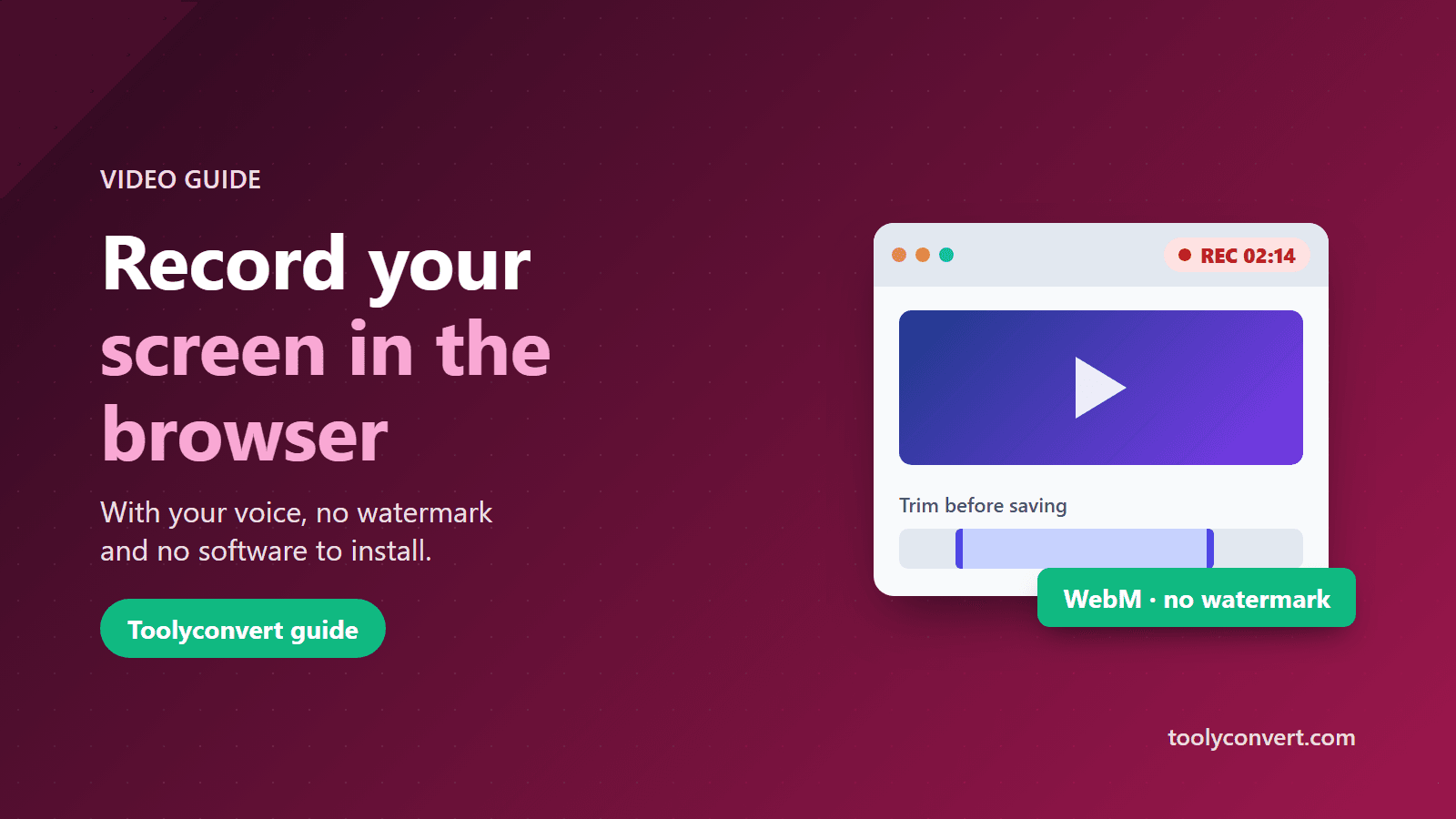
- Trim the clip. Use the sliders to cut the awkward start (while you switch windows) and the end (while you reach for the stop button).
- Save the video. It downloads as a WebM file straight from your device. There is no watermark.
Tab, window or entire screen?
- A browser tab is the cleanest choice for web demos. It is also how you capture the tab's own sound (see below).
- A single window keeps the recording focused on one app and hides everything else.
- The entire screen is useful when you switch between several apps, but it shows notifications and anything else on screen.
Recording sound
- Your voice: turn on microphone audio before you start.
- Sound from a video or website: share a browser tab and enable the option to share the tab's audio in your browser's sharing window. Whether system or tab audio can be captured depends on your browser and operating system.
- Headphones stop your speakers from feeding back into the microphone.
About the WebM format
The video is saved as WebM, a common web video format that plays in Chrome, Edge, Firefox and VLC, and is accepted by many platforms, including YouTube. If a platform or a colleague needs MP4, convert the file with a video converter before you upload it.
Tips for a better recording
- Plan the first sentence. Starting smoothly is easier than trimming a long pause.
- Make text readable. Zoom the page or app so small text stays legible in the video.
- Keep it short. Several short clips are easier to watch and redo than one long one.
- Close heavy apps and tabs. Screen recording uses a lot of processing power; a busy computer can make the video stutter.
- Redo instead of over-explaining. If you stumble, stop, trim, and record that part again.
Privacy
The recording is created in your browser and downloaded to your device; it is not sent to a server. Even so, review the video before sharing it, because anything visible on screen, including passwords typed on screen, open tabs and notifications, is in the recording.
Summary
Open Screen Recorder, turn on your microphone if you will narrate, choose a tab, window or screen, and record for as long as you need. Trim the start and end, then save the WebM video. Share a tab when you also need its sound, and check the video for private details before you send it.