A scan comes back with three blank pages in the middle. A form has a page of instructions nobody needs to see. A statement includes a page with account details you would rather not send. Most PDF readers can show you these pages, but cannot remove them without a paid editor.
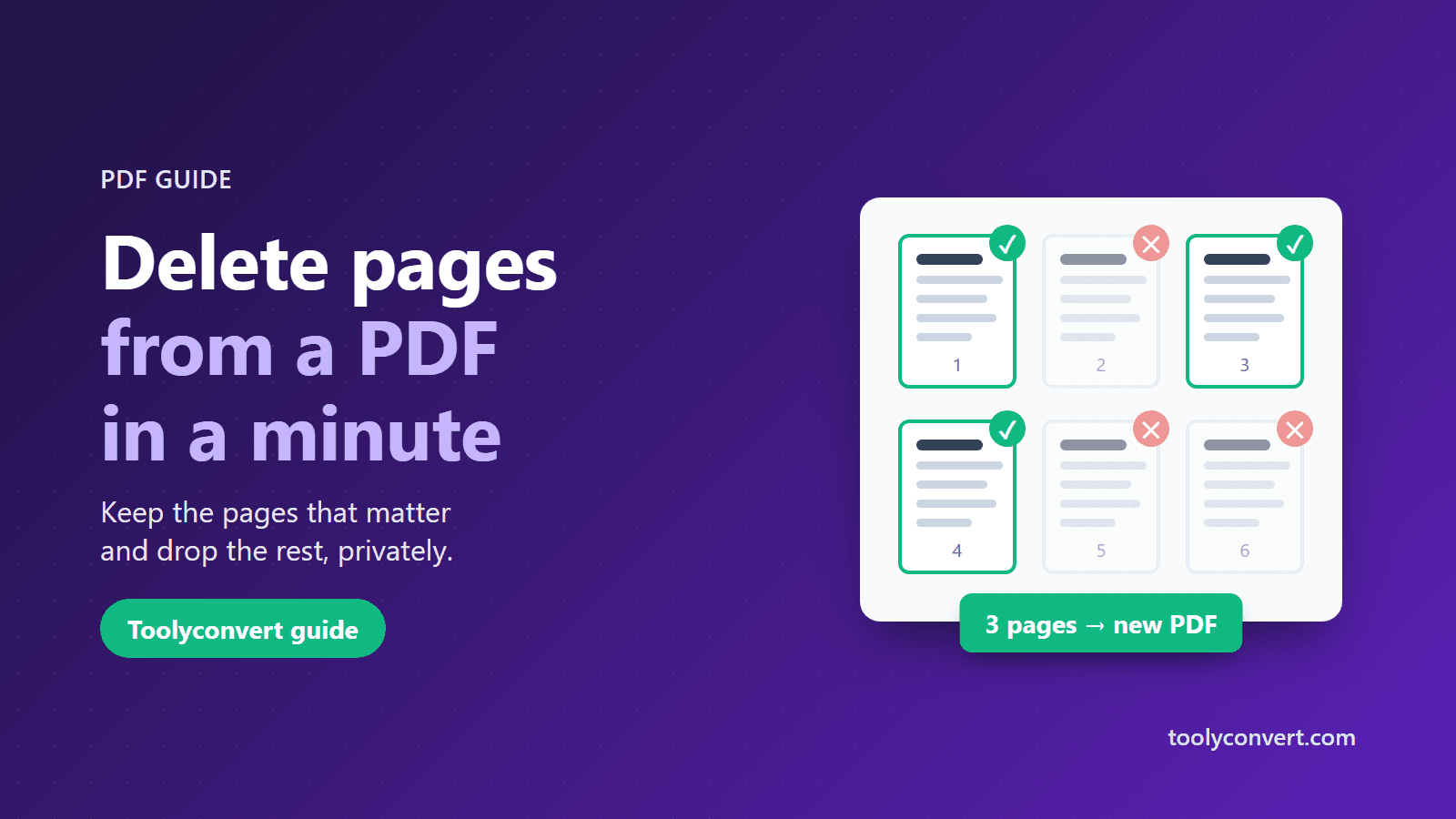
The simple way round it is to turn the problem around: instead of deleting pages, choose the pages you want to keep and save them as a new PDF. This guide shows how to do that in your browser with the free Extract PDF Pages tool, without uploading the file anywhere.
Why "keep" is easier than "delete"
Deleting changes the original file. Keeping creates a new one. That has two advantages:
- The original stays untouched, so if you remove the wrong page you can simply start again.
- You see exactly what you are sending: the new PDF contains only the pages you ticked.
Step by step
- Open Extract PDF Pages and add your PDF (up to 100 MB). The file is read in your browser; it is not uploaded to a server.
- Look through the thumbnails. Every page appears as a small preview. Open a page in the larger preview if two pages look alike.
- Select the pages to keep. Click each page you want in the new file. If you want most of them, use Select all pages and then click the few you want to drop to deselect them.
- Save the new PDF. Download the file. It contains only the selected pages; everything else is left out.
- Open it and check before you send it (see the checklist below).
The new PDF keeps the pages in their original order. If you also need to change the order, use Reorder PDF Pages on the new file.
Common jobs
- Blank pages from a scanner. Double-sided scanning often adds the empty backs of single-sided sheets. Keep only the pages with content.
- Instruction or cover pages. Drop the "how to fill this form" pages before you submit.
- Private pages. Leave out pages with account numbers, other people's details or anything the recipient does not need.
- Duplicate pages. When a page was scanned twice, keep one copy.
Checklist before you send
- Count the pages in the new file and compare with what you meant to keep.
- Read the first and last page. Off-by-one mistakes usually show up at the edges.
- Check the file name. Give it a name that says what it is, such as "Lease-signed-pages.pdf".
- Keep the original until you are sure the new file is right.
If the PDF has a password
A password-protected PDF cannot be opened for page selection. Remove the password first with Unlock PDF (you need to know the password), then extract the pages from the unlocked copy.
Deleting pages vs splitting a PDF
They solve different problems:
- Keep selected pages (this guide) gives you one new PDF with the pages you chose.
- Splitting cuts one PDF into several separate files, for example one file per chapter. Use Split PDF for that.
If you would rather point at the pages to remove than the pages to keep, Remove Pages works the other way round. Use whichever feels quicker for your document.
Summary
To delete pages from a PDF, select the pages you want to keep in Extract PDF Pages and save them as a new file. The original stays as it was, nothing is uploaded, and there is no watermark on the result. Check the new file, give it a clear name, and send only what is needed.