You scan a signed contract with your phone, email it to the client, and a few minutes later they reply: "It came through sideways, can you resend?" You open it, click the rotate button in your PDF viewer, the pages spin the right way round, and you send it again. The client replies: "Still sideways."
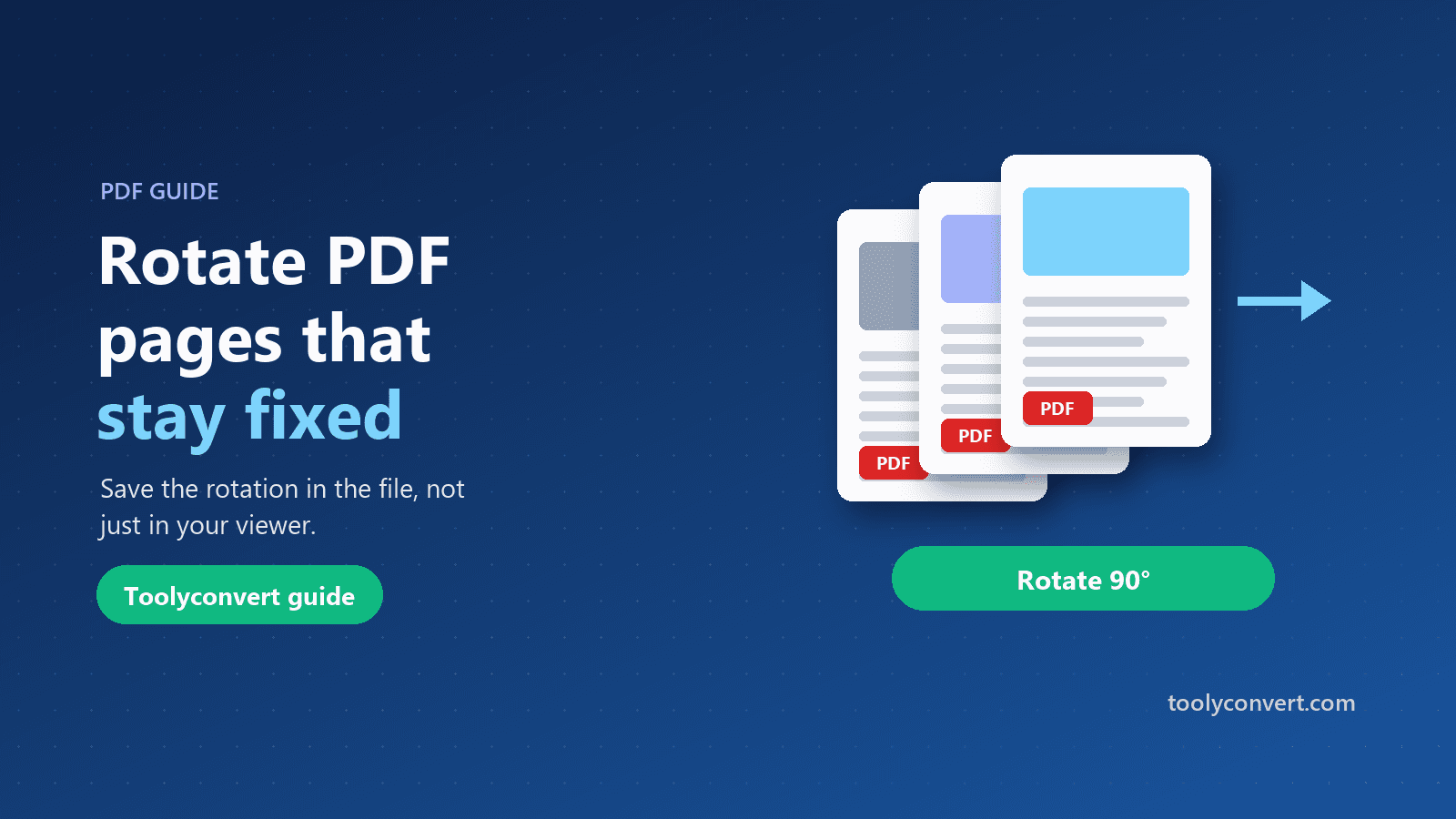
This is one of the most common PDF frustrations, and the reason is simple. Most PDF viewers rotate your view of the document, not the document itself. Close the file and it is back to how it was. This guide explains the difference, how to rotate a PDF so the change is saved in the file, and how to handle documents where only some of the pages are sideways.
Rotating the view versus rotating the file
A PDF viewer, whether it is your browser, Adobe Reader, Preview or a phone app, usually offers a rotate button. In many viewers, this changes only how the page is displayed on your screen at that moment. The file on disk is untouched. Some viewers can save the rotation, but it is easy to close without saving, and many do not offer it at all.
Rotating the file means changing the orientation stored inside the PDF. Every page carries a small setting that tells readers which way up to show it. Change that setting and save, and the page opens the right way round for everyone, on every device, in every reader, and it prints correctly too.
How to rotate a PDF and save it
- Open Rotate PDF and choose the sideways file (up to 100 MB).
- Rotate. Our server sets every page to a 90° clockwise orientation with PyMuPDF and saves the change into the file.
- Download the rotated PDF.
- Open it to check that the pages now read the right way up.
The file is sent over HTTPS and deleted from the server as soon as the rotated PDF is returned.
Because only the orientation setting changes, the page content is not re-rendered or recompressed. Text stays sharp and selectable, images keep their quality, and the file size barely changes.
Understanding the 90° clockwise setting
The tool sets every page to 90° clockwise. That fixes the most common problem, which is pages that appear turned a quarter-turn anticlockwise, with the top of the text pointing to the left. After rotating, the top of the page points up.
It helps to know what to expect in other situations:
| How the page looks now | Result after Rotate PDF |
|---|---|
| Top of the text points left (a quarter-turn anticlockwise) | Fixed, reads normally |
| Upside down | Top of the text points left; not yet fixed |
| Top of the text points right | Still not upright; this needs a different angle |
The table assumes the pages have no rotation setting yet, which is true of most scans and exported documents. The setting is absolute rather than cumulative: each page is set to 90° clockwise, whatever its previous setting was. That means running the file through the tool a second time gives the same result, not a further quarter-turn, and a file that already had a rotation setting may turn differently from the table above. If your pages are upside down or turned the other way, the easiest fix is usually to rescan with the right orientation, or to use your PDF viewer's rotate-and-save option if it has one.
Only some pages sideways?
Mixed documents are common: a report with one landscape table in the middle, or a scanned bundle where a few pages went through the scanner the wrong way. The tool rotates all pages together, so to fix only some of them:
- Extract the sideways pages with Split PDF, which runs in your browser. Our guide to extracting pages from a PDF walks through it.
- Rotate that smaller file with Rotate PDF.
- Extract the upright pages into another file, or remove the sideways ones from the original with Remove Pages.
- Combine everything with Merge PDF, and fix the order if needed with Reorder PDF Pages.
It sounds like several steps, but each takes seconds. Our guide to organising PDF pages covers merging, splitting and reordering together.
Why scanned pages end up sideways
Knowing the cause helps you avoid the problem next time:
- Phone scanning apps guess the orientation from how you hold the phone. Holding it flat over a document on a desk confuses the sensor, and pages are saved sideways.
- Office scanners and copiers save landscape documents rotated if they are fed in the wrong way, or if auto-rotation is turned off.
- Landscape pages in portrait documents, such as wide tables in reports, are sometimes exported with the rotation set incorrectly.
- Combining files from different sources mixes pages that were saved with different orientations.
For phone scans, holding the phone slightly tilted, rather than perfectly flat, helps the app detect the correct orientation. Most scanning apps also let you rotate each page before saving, which is the best time to fix it.
When it really matters
Sideways pages are more than an annoyance in some situations:
- Upload portals for banks, visa applications and universities are often reviewed by people who have hundreds of files to get through. A sideways ID scan or statement makes their job harder and can lead to requests to resubmit.
- Printing. A sideways page prints sideways. Fix it before sending anything to print.
- Presentations and screen sharing. Turning your head to read a slide in a meeting is not a good look.
- Archives. Scans kept for years are easier to use when they are the right way up from the start.
Rotating images rather than PDFs
If what you have is a photo or a set of JPG or PNG files, rather than a PDF, Rotate Image rotates the image files themselves. It is often better to fix the images first, then turn them into a PDF, than to build a PDF from sideways photos and fix it afterwards.
After rotating: finishing the document
Once the pages are the right way up, a few other steps are often worth doing:
- Add page numbers with Add Page Numbers for long bundles; do it after rotating so the numbers appear at the bottom of each upright page.
- Compress for upload with Compress PDF, since scans are often large. Our guide to compressing a PDF without losing quality explains which settings keep text readable.
- Protect sensitive scans with Protect PDF before emailing them.
Frequently asked questions
Which way are pages rotated?
Every page is set to a 90° clockwise orientation.
Can I choose 180° or 270°?
Not in this tool. It sets pages to 90° clockwise.
Can I rotate just one page?
The tool rotates all pages together. Extract the pages you need with Split PDF, rotate them, then merge them back.
Why doesn't rotating in my PDF viewer stick?
Most viewers only rotate your view. The file itself is unchanged, so other people still see the pages sideways.
Does rotating reduce quality?
No. Only the orientation setting changes; the page content is untouched.
Are my files stored?
No. The file is deleted from the server as soon as the rotated PDF is returned.
A rotated view helps only you; a rotated file helps everyone who opens it. Save the change with Rotate PDF, split out mixed pages when you need to, and the next person who opens your document will not have to tilt their head.