A PDF that is too big to email or upload is one of the most common file problems there is. The good news is that most oversized PDFs can be made much smaller with little or no visible difference, as long as you understand what is making them big. This guide explains where PDF size comes from, what compression actually changes, how to pick the right setting for your purpose, and what to do when a file refuses to shrink. It includes the results of a real test we ran on our own Compress PDF tool.
Why are some PDFs so large?
A PDF is a container. Its size depends almost entirely on what is inside it:
- Images such as photos, scanned pages and screenshots. These are by far the biggest cause. A single phone photo can be 3 to 5 MB, and a scanned page at 300 DPI in colour can be several megabytes on its own.
- Embedded fonts. PDFs usually carry the fonts they use so they look the same everywhere. A few fonts add tens or hundreds of kilobytes, rarely more.
- Vector graphics and text. Charts, diagrams and text are stored as instructions, not pixels, so they are very compact.
- Leftover data. Files that have been edited many times can contain unused objects, old versions of pages and uncompressed internal streams.
That is why a 40-page report exported from Word might be 600 KB, while a 10-page scan of a signed contract can be 30 MB. If your PDF is large, the question is almost always: how big are the images inside it, and do they need to be that big?
What "compress without losing quality" really means
No compression method can remove data from an image without any change at all. What good compression does is remove detail you will not notice at the size and in the way you will actually view the document. There are two parts to this:
- Downsampling. Reducing the number of pixels in an image. A scan at 4000 pixels tall displayed on a laptop screen shows far more detail than the screen can display. Reducing it to 1600 or 2400 pixels makes no visible difference on screen but removes most of the data.
- Re-encoding. Saving the image again with JPEG compression at a chosen quality. Quality 85 is visually very close to the original for photos and scans; quality 40 is noticeably softer if you zoom in but perfectly readable.
Text, fonts and vector drawings should never be turned into images during compression. If they are left alone, the words stay perfectly sharp and selectable at any zoom level, no matter how hard the images are compressed. This is the most important thing to check in any PDF compressor.
Our test: how much smaller does a PDF get?
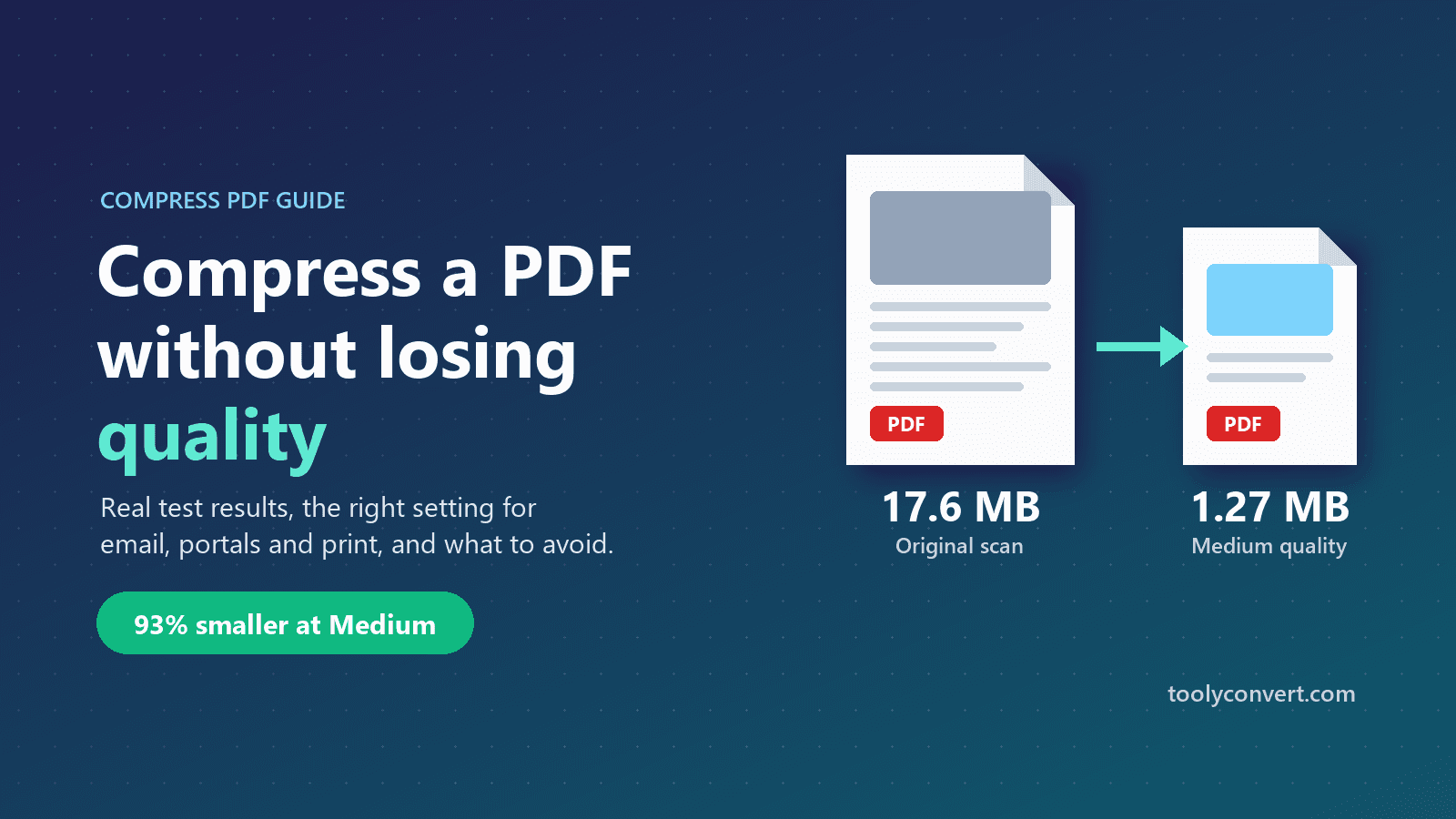
To give you real numbers rather than marketing claims, we compressed a 4-page, 17.6 MB PDF made of 3000 × 4000 pixel scan-like images at each of the three levels in our Compress PDF tool:
| Level | Longest image side | JPEG quality | Result | Reduction |
|---|---|---|---|---|
| High | 2400 px | 85 | 4.4 MB | 75% smaller |
| Medium | 1600 px | 65 | 1.27 MB | 93% smaller |
| Low | 1000 px | 40 | 0.29 MB | 98% smaller |
At High, each 3000 × 4000 page image became 1800 × 2400 pixels, which is still plenty for reading and office printing. Your own results will depend on your file. A PDF of large scans will shrink dramatically, like this one. A PDF that already contains small, compressed JPEGs, or is mostly text, will shrink much less, because there is little image data left to remove.
Which quality level should you choose?
The right level depends on what will happen to the PDF next. Because the size limit applies to the longest side of each image, here is what the levels mean for a full-page A4 scan (11.7 inches tall):
| Level | Effective resolution on a full A4 page | Best for |
|---|---|---|
| High | about 205 DPI | Printing on an office printer, archiving, documents with small print |
| Medium | about 137 DPI | Email, sharing, reading on screens and phones |
| Low | about 85 DPI | Strict upload limits such as job and government portals |
As a rule of thumb, start with Medium. Open the result and zoom in on the smallest text in any scanned area. If it is still easy to read, you are done. If you need a smaller file, try Low on the original file. If the scans look too soft, use High.
How to compress a PDF with Toolyconvert
- Open Compress PDF and choose your file. Each upload can be up to 100 MB.
- Pick High, Medium or Low quality.
- Click compress. Each embedded image is resized to fit the level's limit and saved as a JPEG, but only if the new version is actually smaller than the original. Unused objects are then removed and the internal streams are deflated.
- Download the compressed copy and open it to check that it looks right.
Our Compress PDF tool processes the file on our server. It is sent over an encrypted HTTPS connection, compressed, returned to you, and the temporary copies are deleted as soon as the response has been sent. We do not keep your documents.
Common size limits you may be trying to meet
| Where the PDF is going | Typical limit |
|---|---|
| Gmail attachment | 25 MB (larger files are sent as a Google Drive link) |
| Outlook.com attachment | 20 MB |
| Job and government application portals | Often between 200 KB and 2 MB per document |
| Learning platforms such as Moodle | Set by each school, often 10 to 50 MB |
Portal limits vary a lot, so always check the exact number on the upload page. If a single PDF is still too large after compressing at Low, split it into parts with Split PDF and upload each part separately if the portal allows it.
Why won't my PDF get smaller?
If compression barely changes the size, one of these is usually the reason:
- The PDF is mostly text. A document exported from Word or Google Docs with few images is already compact. Most of its size is embedded fonts, which image compression does not change.
- The images are already small. If a PDF was created from web images or has been compressed before, there is little left to remove. Compressing an already compressed JPEG again saves very little and costs quality.
- The file is password-protected. An encrypted PDF cannot be rewritten without its password. Remove the password with Unlock PDF, compress it, then add protection back with Protect PDF if you need it.
- The file is damaged. Broken PDFs sometimes fail to process. Try Repair PDF first.
Things to watch out for
- Transparent images. JPEG does not support transparency. Logos or signatures stored with a transparent background can end up on a solid background after compression. Check pages with logos, stamps or signatures before you send the file.
- Digital signatures. Any change to a signed PDF, including compression, makes the digital signature invalid. Compress first, then sign.
- Keep the original. JPEG compression permanently removes detail from images. Always compress a copy and keep the original, especially for contracts, certificates and anything you may need to print at high quality later.
- Don't compress twice. If a Medium result is not small enough, go back to the original and use Low, rather than compressing the compressed file again.
Other ways to compress a PDF
A browser tool is the quickest option for most people, but there are alternatives, especially for confidential documents you would rather not upload anywhere:
- Mac Preview. Open the PDF, choose File, then Export, and set Quartz Filter to "Reduce File Size". It is fast and offline, but it often compresses images very aggressively and can make scans blurry.
- Adobe Acrobat Pro. Its "Reduce File Size" and "Optimize PDF" options give fine control over image resolution and quality, but it is paid software.
- Ghostscript (free, command line). For example:
gs -sDEVICE=pdfwrite -dPDFSETTINGS=/ebook -dNOPAUSE -dBATCH -sOutputFile=small.pdf input.pdf. The/screenpreset targets about 72 DPI,/ebookabout 150 DPI and/printerabout 300 DPI. - Print to PDF. Printing a document to PDF can sometimes shrink it, but it may turn text into images or lose links and bookmarks, so it is not recommended.
Frequently asked questions
Will compressing a PDF make the text blurry?
Not with a compressor that only touches images. Our Compress PDF tool never turns text, fonts or vector graphics into images, so text stays sharp and selectable.
Is it safe to compress confidential PDFs online?
Our tool deletes your file from the server as soon as the result is returned. For highly sensitive documents, you may still prefer an offline method such as Ghostscript or Acrobat on your own computer.
Why is my compressed PDF bigger than the original?
This can happen with some other tools when they re-save already optimised images. Our tool only replaces an image when the new version is smaller, so the images never grow, although tiny changes in the file structure can occasionally add a few kilobytes to files that have almost no images.
Can I compress several PDFs at once?
Compress PDF handles one file at a time. If you have several documents that go together, you can combine them first with Merge PDF and compress the merged file.
Summary
Large PDFs are almost always large because of images. Compress them by reducing image resolution and re-encoding them, never by turning text into images. Start with Medium for email and sharing, use High when the document will be printed, and Low only when you must meet a strict upload limit. Keep your original, check the result before you send it, and remember to remove passwords before compressing and add signatures after. When you are ready, try it with Compress PDF.