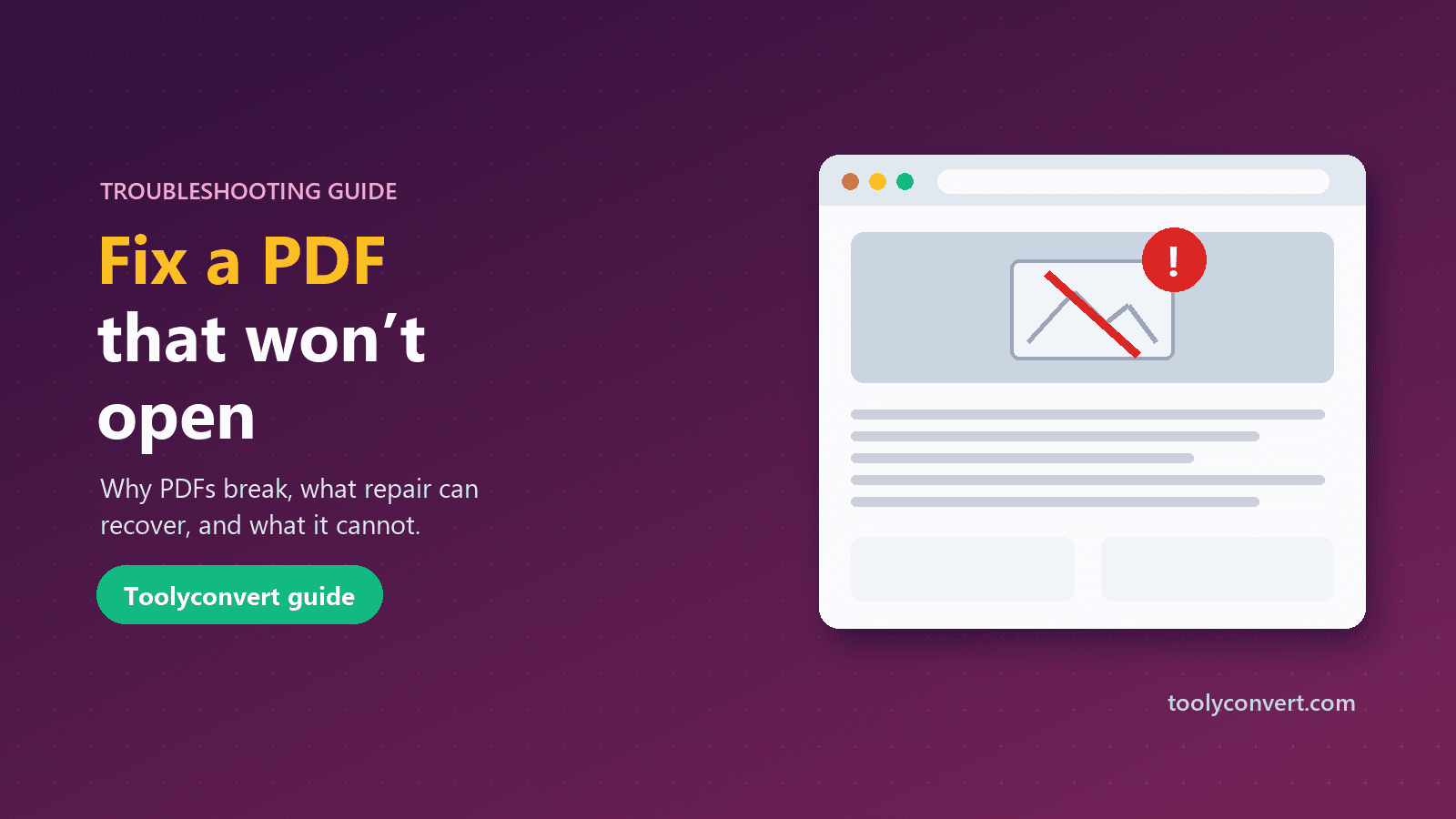
"There was an error opening this document. The file is damaged and could not be repaired." It always seems to appear at the worst moment: the signed contract you need to forward, the ticket you need at the airport gate, the invoice the accountant is waiting for. The file was fine yesterday, or so it seemed, and now it will not open at all.
The good news is that a PDF that will not open is often not truly destroyed. Many "damaged" PDFs have a small structural problem, the equivalent of a torn index page in a book whose chapters are all still there. This guide explains why PDFs break, how to try the simple fixes first, how to repair a damaged file, and when it is time to accept that the data is gone and ask for a new copy.
How a PDF is put together
To understand why PDFs break, it helps to know a little about how they are built. A PDF is a collection of objects: pages, fonts, images and text streams. At the end of the file sits a cross-reference table, an index that tells the reader exactly where each object starts, followed by an end-of-file marker.
When you open a PDF, the reader jumps to the end, reads the index, and uses it to find the pages. If the index is broken, or the end of the file is missing, strict readers give up immediately, even though every page might be sitting intact inside the file.
Why PDFs get damaged
Most damage comes from a handful of everyday causes:
- Interrupted downloads. A dropped connection or a closed browser tab leaves a file that stops partway through. The index and end marker, which live at the end, are exactly the parts that go missing.
- Email attachments. Some older mail systems and size limits damage or cut off attachments in transit.
- Faulty software. Some scanning apps, printers and online generators write PDFs with small errors that lenient readers ignore and strict ones reject.
- Storage problems. Files copied from old USB sticks, failing drives or interrupted syncs can be partly corrupted.
- Editing gone wrong. A program that crashes while saving a PDF can leave it half-written.
Try the simple fixes first
Before repairing anything, rule out the easy causes. They solve a surprising number of cases:
- Download it again. If the file came from a website, an email or a cloud drive, fetch a fresh copy. A clean download fixes truncated files instantly.
- Try a different reader. Open the file in a browser such as Chrome, Edge or Firefox. Browsers are often more forgiving than desktop readers. If it opens there, you can read it, and repairing it will make it work everywhere.
- Check whether it wants a password. A prompt for a password is not damage. The file is encrypted; you need the password, and Unlock PDF can save an unprotected copy once you have it. Our guide to removing a password from a PDF explains the common formats.
- Check the file size. A PDF of 0 KB, or one that is far smaller than expected, is almost certainly truncated. Repair can recover the pages that made it, but not the ones that did not.
How to repair a damaged PDF
If a fresh copy is not available, or the original itself is broken:
- Keep a copy of the damaged file. Never work on your only copy.
- Open Repair PDF and choose the file (up to 100 MB).
- Repair. Our server opens the file with PyMuPDF, which rebuilds a damaged cross-reference table and recovers the objects it can find, then saves a clean, rewritten copy.
- Download and check every page of the repaired file.
The file is sent over HTTPS and deleted from the server as soon as the repaired copy is returned.
What repair can and cannot fix
Being honest about the limits saves time and false hope.
| Problem | Can repair help? |
|---|---|
| Broken or missing cross-reference table | Yes, it is rebuilt |
| Missing end-of-file marker | Usually, yes |
| Small structural errors from buggy software | Usually, yes; the file is rewritten cleanly |
| "Opens in Chrome but not in Adobe Reader" | Usually, yes |
| File cut off halfway through | Partly: pages before the cut can often be recovered, later ones cannot |
| File of 0 KB or filled with random data | No; there is nothing to recover |
| Password-protected file | Not a repair problem; unlock it with the password |
| Blurry or low-quality scan | No; repair fixes structure, not image quality |
The key idea: repair can rebuild the structure around content that still exists. It cannot recreate content that was never saved or was overwritten. If a file was truncated at page 12 of 30, the repaired file will usually end at page 12.
Checking the repaired file
A repaired file can open cleanly and still be incomplete, so check it properly:
- Count the pages. Compare with what you expected, such as the number of pages in the original email or the invoice total.
- Look at the last page. Truncation shows up at the end.
- Check images and fonts. Occasionally an image or a font was damaged and appears blank or substituted.
- Search for key text, such as a name or reference number, to confirm the text layer is intact.
If something important is missing, the only real fix is a fresh copy from the source. Contact the sender with a short note saying the file arrived damaged; most people are happy to resend.
Portals that reject your PDF
Sometimes a file opens perfectly on your computer but a bank, university or government portal rejects it as "invalid" or "corrupted". Upload systems are often much stricter than desktop readers, and a small structural error that your reader tolerates is enough to fail their check.
Running the file through Repair PDF rewrites it cleanly, which fixes many of these rejections. Other common causes worth checking:
- Encryption. Many portals cannot read password-protected files. Unlock it first.
- Size limits. A file over the limit is sometimes reported as "invalid" rather than "too large". Compress PDF can bring it down; our guide to compressing a PDF without losing quality explains how.
- Unusual PDF versions. Some scanners produce files that portals do not accept. A repaired, rewritten copy often passes.
After repairing: rescue the content
Once the file opens, it is a good idea to secure what you have:
- Save the repaired copy with a clear name and keep it separately from the damaged one.
- Extract important pages with Split PDF if only part of the file matters.
- Convert to an editable format if you need to rebuild missing sections. PDF to Word turns the recovered pages into a document you can edit; our guide to converting PDF to Word without losing formatting covers the details.
- Combine with a fresh copy of any missing pages using Merge PDF.
Preventing damaged PDFs
A few habits make corrupted files much rarer:
- Wait for downloads to finish before opening or moving files, especially on mobile data.
- Keep backups of important documents in more than one place.
- Eject USB drives properly instead of pulling them out.
- Use reliable software to create PDFs, and re-save files from dubious generators through a trusted tool.
- Share links for large files instead of attachments, where email size limits can cause trouble.
Frequently asked questions
What kind of damage can Repair PDF fix?
Structural problems, such as a broken cross-reference table, a missing end-of-file marker or small errors left by some software.
Can it recover missing pages?
Only if the page data is still in the file. Content that was cut off or overwritten cannot be restored.
My PDF asks for a password. Is it damaged?
No, it is encrypted. Use Unlock PDF with the correct password.
What if repair fails?
The file may be too badly damaged. Download it again or ask the sender for a fresh copy.
Will repairing change my document?
The recovered pages keep their content. The file is rewritten cleanly, which can make it slightly smaller.
Are my files stored?
No. The file is deleted from the server as soon as the repaired copy is returned.
A "damaged file" error is alarming, but it is often a torn index rather than lost pages. Try a fresh download and a different reader, repair the file with Repair PDF, check every page, and ask for a new copy only if something is truly missing.