Banks, mobile shops, landlords, hotels, employers and colleges all ask for the same thing: "a copy of your Aadhaar, both sides". Getting the front and back neatly onto one page, at the right size, usually means fiddling with a photo editor or paying a print shop. And every copy you hand over carries your full Aadhaar number, which you would rather not spread around.
This guide shows how to put both sides of an Aadhaar, PAN, voter ID or driving licence on one A4 page at real card size, how to use your e-Aadhaar PDF directly, and how to make a safer copy by masking the number and adding a purpose watermark. You can follow along with the free Aadhaar & ID Card Print tool, which runs entirely in your browser.
What you need
You can start from any of these:
- Your e-Aadhaar PDF, downloaded from UIDAI's myAadhaar website. This gives the sharpest result.
- Photos of the physical card, front and back, taken with your phone.
- A scan of the card from a scanner or a scanning app.
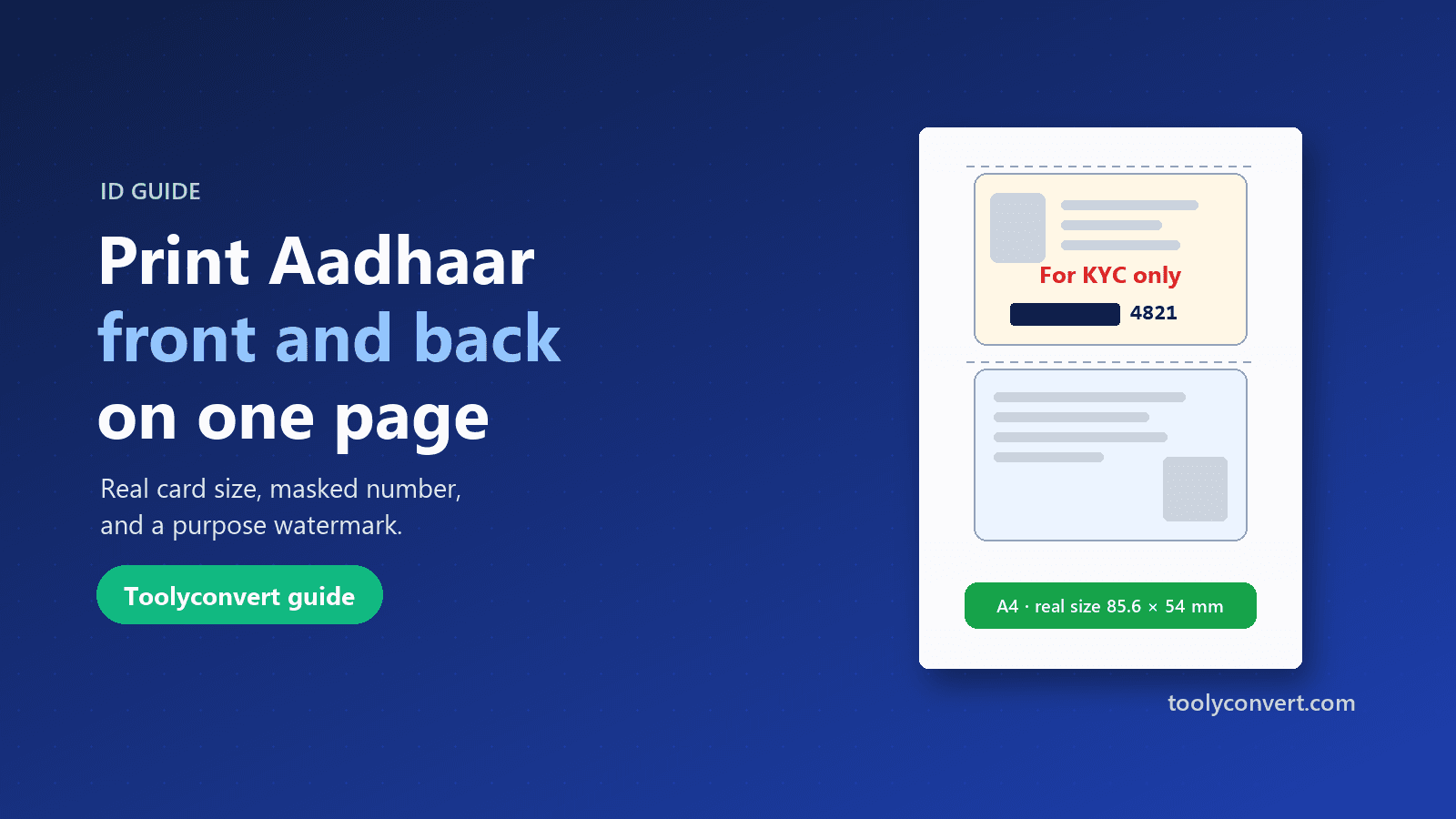
For PAN cards, voter IDs and driving licences, use photos or scans. All of these cards share the standard ID card size of 85.6 × 54 mm, the same as a bank card, so they print the same way.
Opening your e-Aadhaar PDF
The e-Aadhaar PDF is password-protected. UIDAI sets the password as the first four letters of your name in capital letters, followed by your year of birth. For example, someone named Rahul born in 1990 would use RAHU1990.
When you add the PDF to the tool, it asks for this password and opens the file on your device. The password is not sent anywhere. The tool then looks for the card-shaped sections on the page and frames the front and back automatically. Choose "Use the same PDF for the back" to fill in the second side.
If the framing is slightly off, drag the card in its frame and use the zoom slider until the card's edges line up.
Using photos of the card
Good photos make good copies:
- Place the card on a dark, plain surface. A contrasting background makes the edges easy to see.
- Use daylight and avoid flash. Flash causes glare on laminated and PVC cards.
- Shoot straight down, with the card filling most of the photo.
- Take the front and the back separately.
Add each photo to its side in the tool. Drag and zoom to line up the card with the frame, use Rotate for sideways photos and the straighten slider for a slight tilt. The Enhance option, on by default, brightens dull phone photos a little.
Making a safer copy: masking and watermarks
Every full copy of your Aadhaar shows your complete 12-digit number. UIDAI offers a masked Aadhaar, which hides the first eight digits and shows only the last four, and many organisations accept it for identity checks. Some purposes, such as certain government and banking processes, still need the full number, so ask what is required.
To mask a copy in the tool, choose Cover part and drag over the first eight digits on each side where the number appears. You can add several covered areas and undo the last one.
A watermark adds another layer of protection. Writing the purpose and date across the copy, such as "For bank KYC only – 02/10/2026" or "For SIM card only", makes it harder for anyone to reuse the copy for something else. Type it into the watermark box and it appears across both sides.
The same idea works for other documents. For PDFs such as bank statements, the Redact PDF tool removes private text permanently.
Choosing a layout and printing
The tool offers three layouts on A4:
- Front above back, the most common request for forms.
- Side by side, handy for landscape forms or saving space.
- Four copies, which fills the page with four front-and-back sets for when you need several copies.
Options include Black & white to save ink (and match photocopies) and dashed cut lines to make cutting out easy.
Download a PDF or JPG, or press Print. When printing, choose 100% or Actual size in the print dialog, not "Fit to page". Fit to page shrinks the cards, so they no longer match the real card size.
Sharing digitally
Often you do not need paper at all. Many forms and offices accept a PDF by email or upload. If the PDF is too large for a form's upload limit, the Compress PDF tool makes it smaller, and if you need to combine your ID with other documents, Merge PDF joins them into one file.
If a form asks for your photo and signature at a specific size as well, our guide to photo and signature sizes for exams covers the most common requirements.
Common problems and fixes
"The password doesn't work." Check that the four letters are capitals and come from your name exactly as printed on the Aadhaar, followed by the four-digit year of birth with no spaces. If your name has initials or a salutation on the card, use the letters as they appear there.
"The cards printed too small." The print dialog was set to "Fit to page" or a scaling percentage. Print again at 100% or "Actual size".
"The photo looks dark or blurry." Retake it in daylight, hold the phone steady and tap to focus on the card. Keep Enhance on.
"The card is tilted in the frame." Use the straighten slider for small angles, and Rotate for sideways photos.
"The copy is too large to upload." Download the PDF and run it through Compress PDF, or download the JPG, which is often smaller.
Is a printed e-Aadhaar valid?
UIDAI states that the e-Aadhaar is as valid as the physical Aadhaar letter, so a printout of it is generally accepted as a copy. If you want a durable card, UIDAI also lets you order an official PVC Aadhaar card online for a small fee, delivered by post. A home-printed copy is just that, a copy, and is not the same as UIDAI's PVC card.
Keeping your ID safe
- Share only what is needed. Use a masked Aadhaar where the full number is not required.
- Always add a purpose. A watermark with the purpose and date limits misuse.
- Avoid uploading ID cards to random websites. This tool works in your browser, so your card never leaves your device.
- Delete old copies from shared computers and print shops' systems where you can.
- Lock your biometrics through UIDAI's services if you want extra protection against misuse.
Quick checklist
- Start from your e-Aadhaar PDF, or clear photos of both sides.
- Open the Aadhaar & ID Card Print tool and add both sides.
- Line up each card with its frame.
- Cover the first eight digits if a masked copy is acceptable, and add a purpose watermark.
- Choose a layout, then download or print at 100% (Actual size).
With both sides on one page at real size, and the number masked where possible, you get a neat copy in a minute and share a little less of your personal data each time.