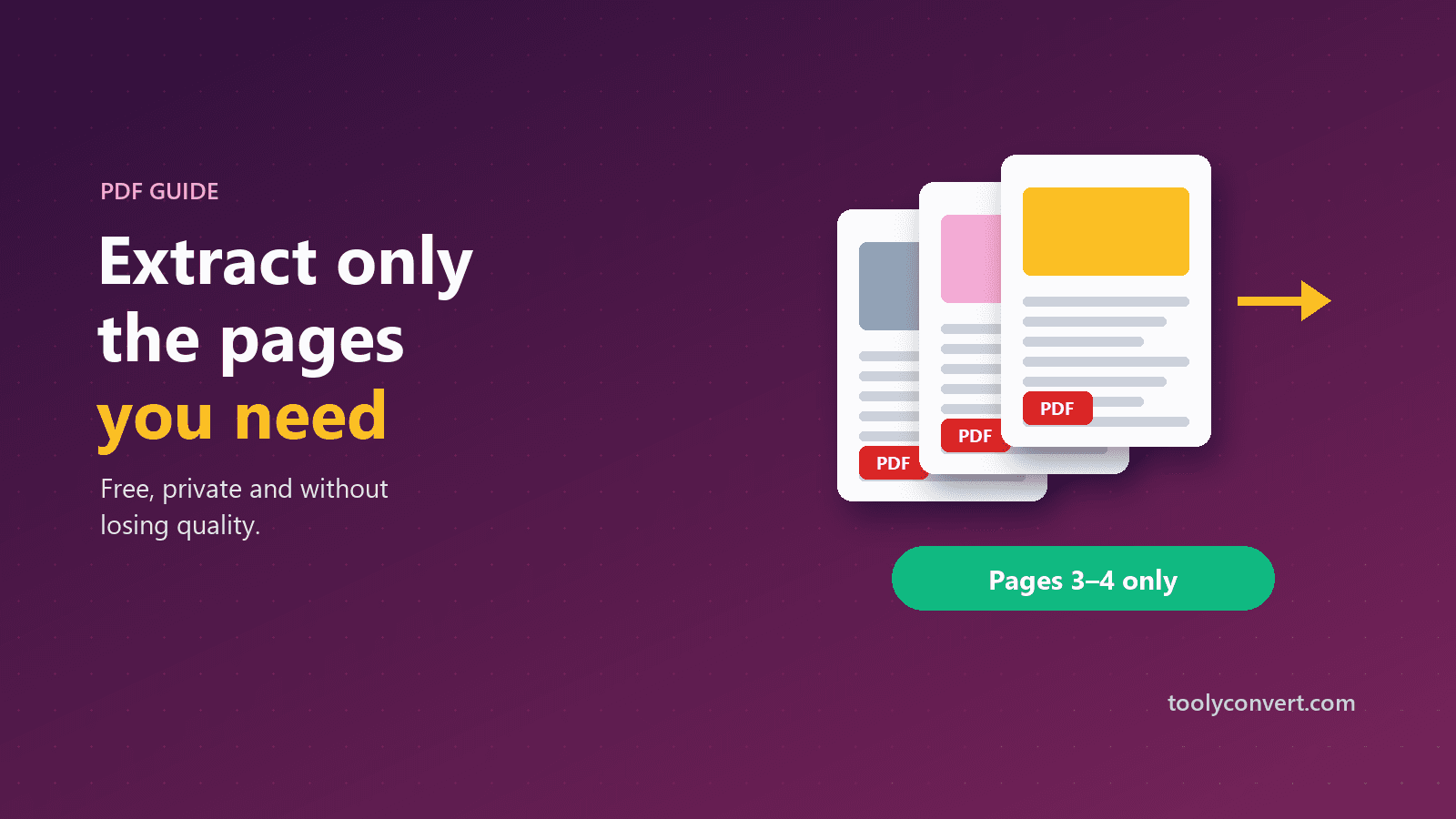
Your bank sends a 22-page statement, and the landlord only needs the page showing your salary coming in. Your university wants one certificate, but it is buried in a 40-page scan of every document you own. Your accountant asks for "just the summary page" of a long report. In each case, you have a big PDF and need a small part of it, and you would rather not send everything else along with it.
Extracting pages is one of the simplest PDF tasks, yet it is surprisingly easy to get wrong: uploading private documents to a random website, ending up with blurry pages, or sending the wrong page altogether. This guide shows how to do it quickly, keep the original quality, and keep sensitive files private.
Why extract instead of sending the whole thing
Sending only the pages someone needs is not just tidier. It is often the right thing to do:
- Privacy. A full bank statement reveals every transaction. A single page showing the relevant entry reveals much less.
- Upload limits. Portals often cap file sizes. A few pages from a large scan are far smaller than the whole document.
- Clarity. The recipient sees exactly what matters, without hunting through pages.
- Speed. Smaller files send, open and print faster, especially on phones.
Keeping private documents private
The documents people most often need to trim are also the most sensitive: statements, contracts, medical records, ID scans and payslips. Before using any online PDF tool, it is worth asking where your file actually goes.
The Split PDF tool works entirely in your browser. The PDF is opened and rebuilt on your own device, and it is never uploaded to our server. That makes it a sensible choice for confidential files, and it also works without a fast connection once the page has loaded.
Step by step
- Open the PDF in Split PDF. Every page appears as a thumbnail, so you can see exactly what you are selecting.
- Click the pages you want. Selected pages are highlighted. To keep almost everything, use Select all and then untick the few pages you want to leave out.
- Check your selection. Look at the headings, dates and page numbers on the thumbnails, especially with scanned documents where pages look alike.
- Extract and download. The chosen pages are saved as a new PDF, in their original order.
The pages are copied as they are, not re-rendered, so text stays selectable, images keep their quality, and scans look exactly like the original.
Everyday situations and what to extract
| Situation | What to send |
|---|---|
| Proof of income for a landlord | The statement pages showing salary credits, not every transaction |
| University or job portal | Only the certificate or transcript pages they list |
| Insurance claim | The invoice and the relevant report pages |
| Visa application | The specific statement months the checklist asks for |
| Sharing part of a report | The summary and the one chart being discussed |
| Printing a manual | Just the section you need at the workbench |
When in doubt, ask the recipient exactly which pages they need. It is a quick question that saves both of you time, and it often turns out they need far less than you expected.
Printing only what you need
Extracting also saves paper and ink. Instead of printing a 90-page manual to follow six installation steps, extract those pages, print them, and keep the full manual on screen. The same goes for long contracts, where you may only need to print and sign the signature pages.
Removing pages instead of extracting them
Sometimes the easier way to think about it is the opposite: you want the whole document except a few pages, such as a cover sheet, blank pages from a scanner, or an appendix with personal notes. Use Select all, untick the pages to remove, and download. The result is the full document minus those pages.
Getting several separate files
Each run produces one new PDF. If you need to split a document into several files, such as separate files for each payslip in a combined scan, run the tool once for each set of pages. Naming each download clearly as you go, for example payslip-march.pdf and payslip-april.pdf, saves confusion later.
Scanned documents
Scans are the most common reason people need to extract pages, and they come with their own quirks:
- Pages can look nearly identical. Check dates and reference numbers on thumbnails before selecting.
- Scans are large. Each page is a full-size image, so even a few extracted pages can exceed a portal's limit. If so, run the result through Compress PDF; our guide to compressing a PDF without losing quality explains which setting keeps text readable.
- Crooked or sideways pages are copied as they are. If a page is rotated wrongly, it is often quickest to rescan it.
Password-protected PDFs
Many bank statements and official documents are protected with a password. A protected file usually has to be unlocked before its pages can be extracted. Open it with the password in your PDF viewer and save or print an unprotected copy, if the document's owner allows it, then extract the pages you need from that copy. Delete the unprotected copy when you are finished.
Common questions answered
Will the extracted pages look different?
No. The pages are copied from the original, so text, images and page size are unchanged.
In what order are pages saved?
In the order they appear in the original document, whatever order you clicked them in. If you need a different order, extract the pages and then arrange them with Merge PDF, which lets you drag files into any order.
Can I combine pages from two different PDFs?
Yes, in two steps: extract the pages you need from each document, then merge the results into one file. Our guide to merging PDFs for applications covers ordering and final checks.
Does it work on a phone?
Yes. Open the page in your phone's browser, choose the PDF from your files, tap the pages you want and download.
A few habits that prevent mistakes
- Open the result before sending it. Confirm it has the right pages and nothing extra.
- Name the file for the recipient, such as
Firstname-Lastname-Degree-Certificate.pdf, notscan0042-extract.pdf. - Keep the original. Extracting creates a new file and leaves the original untouched; keep it somewhere safe.
- Think about what the pages reveal. Even a single page can show account numbers or addresses. If the recipient does not need a detail, consider whether it should be visible at all.
Small file, right pages, no worries
Extracting pages is one of those tasks that takes thirty seconds once you know how, and it makes you look organised to whoever receives the file. More importantly, it means you share only what someone needs, and with a tool that keeps the document on your own device, your private paperwork stays exactly that.
Next time a long PDF lands in your inbox and you only need page 17, open it in Split PDF, click once, and download.