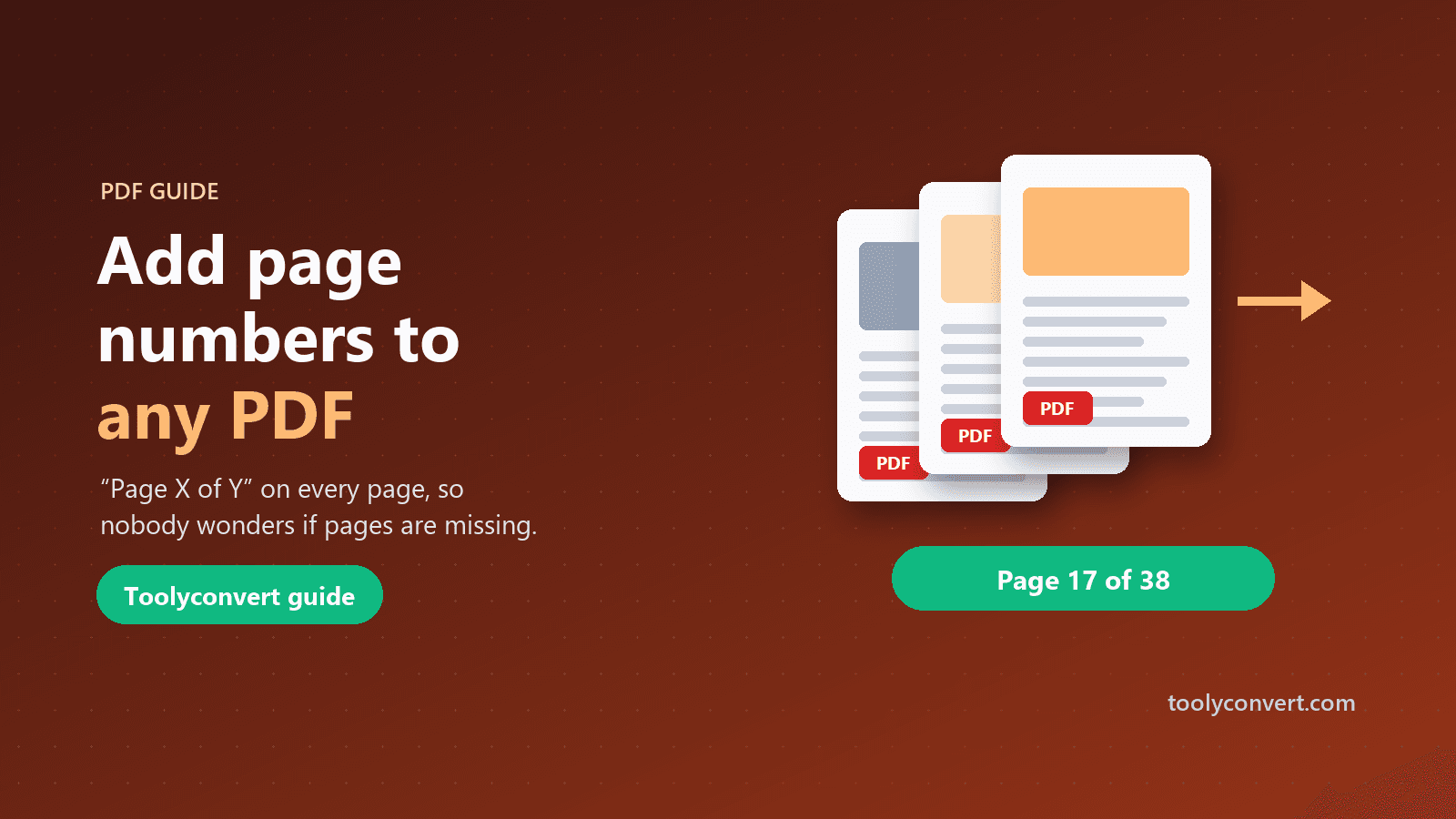
Picture a visa officer working through a stack of applications. Yours is a single 38-page PDF: passport scan, bank statements, payslips, a sponsor letter, a hotel booking. The checklist says six months of statements. Are they all there? Did page 17 go missing when you merged the files? Without page numbers, the officer has to count. With "Page 17 of 38" at the bottom of every page, the answer is obvious in a second.
Page numbers are easy to overlook because they are so ordinary. But in any document that is reviewed, discussed, printed or checked for completeness, they quietly do a lot of work. This guide explains when page numbers matter most, how to add them to a PDF, and how to prepare a document so the numbering comes out right.
Why "Page X of Y" is better than just "X"
A bare page number tells you where you are. "Page X of Y" also tells you whether anything is missing. That matters whenever someone needs to be sure they have the whole document:
- Reviewers and officials checking an application bundle can confirm nothing has been lost.
- Printed documents that get dropped, shuffled or partly photocopied can be put back together and checked.
- Attachments that arrive in several parts, or get truncated by an email system, show immediately that something is incomplete.
- Contracts can be checked page by page before signing, so nobody can later claim a page was added or removed.
That is why Add Page Numbers uses the "Page X of Y" format on every page.
How to add page numbers to a PDF
- Prepare the document (see the next section): merge everything, remove blank pages and fix the orientation.
- Open Add Page Numbers and choose the PDF (up to 100 MB).
- Add the numbers. Our server writes "Page 1 of 38", "Page 2 of 38" and so on at the bottom centre of each page, in a neat 11-point font, using PyMuPDF.
- Download and check the footer area of a few pages.
The numbers become part of each page, so they appear in every PDF reader and on printouts. The file is sent over HTTPS and deleted from the server as soon as the numbered PDF is returned.
Prepare first, number last
Page numbers are the last step, because anything you change afterwards throws them off. Before numbering:
Merge all the parts. If your bundle is made of several files, combine them in order with Merge PDF first. Numbering each file separately gives you several "Page 1"s, which defeats the purpose.
Put pages in the right order. Move pages around with Reorder PDF Pages so the numbering follows the order the reader expects, usually matching the checklist you were given.
Remove blank and unwanted pages. Scanners often add blank pages, and exported documents sometimes end with an empty one. Delete them with Remove Pages so the total is accurate.
Fix sideways pages. If some pages are rotated, the numbers will not appear at the visual bottom of those pages. Fix orientation first; our guide to rotating PDF pages and saving them explains how to handle mixed documents.
Our guide to organising PDF pages covers merging, splitting and reordering in more detail.
Where the numbers go, and what to check
The numbers are placed at the bottom centre of each page. Most documents have space there, but it is worth a quick look at pages that already have content in the footer:
| Document type | What to check |
|---|---|
| Scans of letters and forms | Usually fine; the bottom margin is blank |
| Bank statements | Some print their own footer; check it is still readable |
| Reports exported from Word | May already have page numbers; you will end up with two sets |
| Slides saved as PDF | Footers with dates or logos may sit near the numbers |
| Full-bleed images and designs | The numbers sit on top of the image |
If a document already has its own page numbers, as many Word exports do, consider whether you need new ones. For a merged bundle, the new "Page X of Y" numbering covers the whole file, while the originals only number each part, so both can be useful. If that looks cluttered, remove the numbering from the source document before exporting it.
When page numbers matter most
Application bundles. Visa, immigration, mortgage, university and job applications often ask for many documents as a single file. A numbered bundle is easier to check, and you can refer to it in a covering letter: "bank statements, pages 6 to 17".
Legal and contract documents. When several people discuss a contract, "page 14, second paragraph" is precise. Numbering every page before signing also helps prove that the document was complete.
Theses, dissertations and reports. Many institutions require page numbers, and examiners refer to them in feedback.
Board packs and meeting papers. Everyone can follow along when the chair says "turn to page 23".
Printed handouts and manuals. Dropped or shuffled pages go back in order in seconds.
Beyond simple page numbers
This tool uses one clear, fixed format: "Page X of Y" at the bottom centre, starting at 1 on the first page. That suits most bundles and reports.
Some documents need more. Legal disclosure often uses Bates numbering, a unique reference like ABC000123 on every page across a whole set of documents, and some organisations need custom headers and footers with a case number or a date. The Bates numbering and header/footer tool handles those. Use simple page numbers for bundles people read, and Bates numbers when documents must be cited exactly across a whole case.
After numbering
With the numbers in place, a few finishing steps are common:
- Compress for upload. Bundles of scans get large quickly. Compress PDF brings them under portal limits; our guide to compressing a PDF without losing quality explains how to keep text readable.
- Protect it. Application bundles are full of personal and financial data. Add a password with Protect PDF before emailing it, and send the password separately.
- Label it. For drafts that will be reviewed, Watermark PDF adds DRAFT to every page alongside the numbers.
A typical order for a complete bundle: unlock any protected files, merge, reorder, remove blanks, rotate, number, compress, then protect. It sounds like a lot, but each step takes seconds, and the result is a document any reviewer will appreciate.
Frequently asked questions
What do the page numbers look like?
"Page 1 of 10", "Page 2 of 10" and so on, in an 11-point font at the bottom centre of each page.
Can I change the position or format?
Not in this tool. For custom headers, footers or Bates numbers, use the Bates numbering and header/footer tool.
Can I start from a number other than 1?
Not in this tool. Numbering always starts at 1 on the first page.
Is the first page numbered too?
Yes. Every page is numbered, including covers.
Can I number a password-protected PDF?
Remove the password first with Unlock PDF, then add numbers.
Are my files stored?
No. The file is deleted from the server as soon as the numbered PDF is returned.
Page numbers are a small courtesy that makes documents easier to check, discuss and trust. Prepare the file, add the numbers last with Add Page Numbers, and give every reviewer an instant answer to "is it all here?"