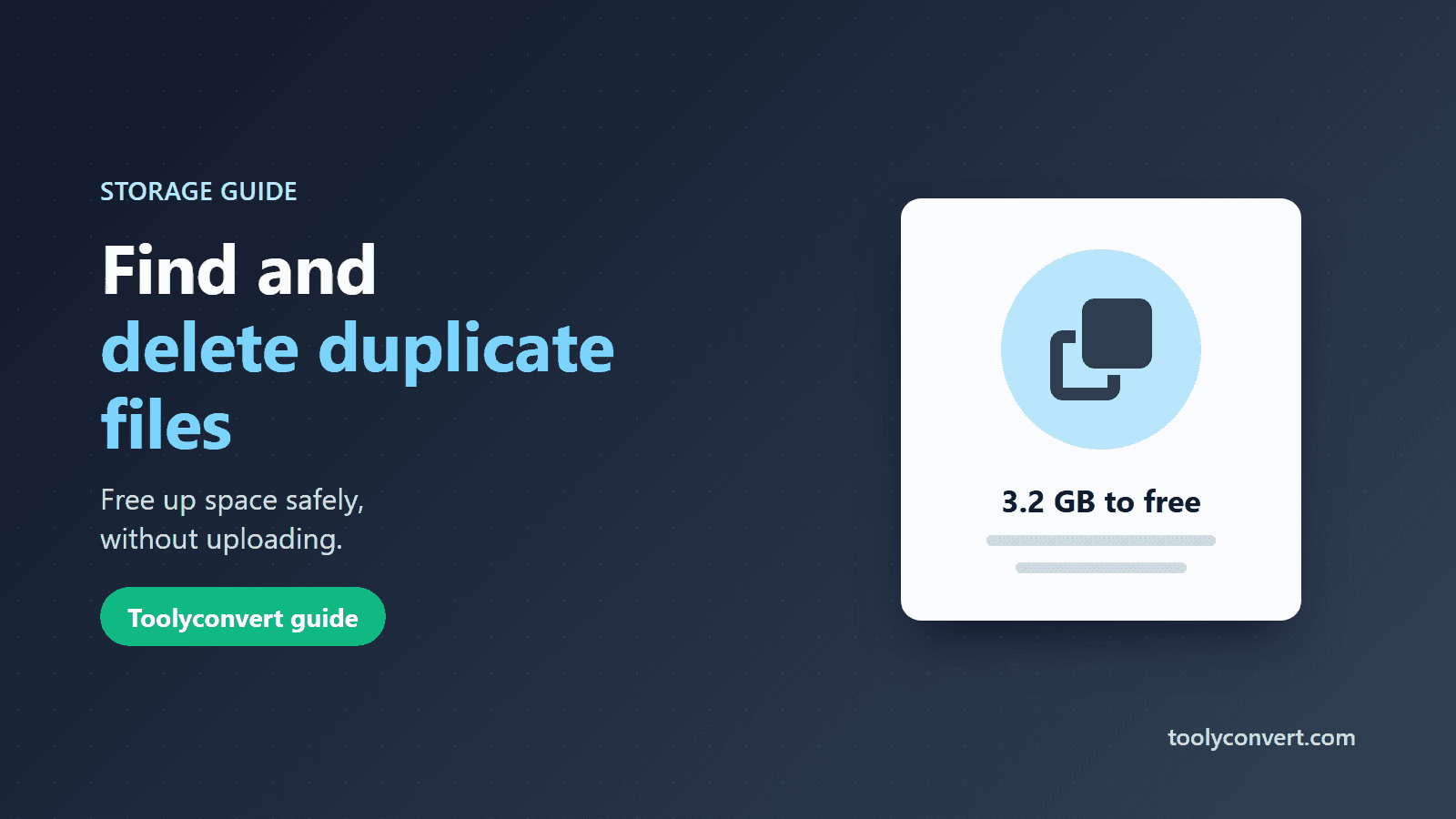
Your laptop says the disk is almost full, but you have not added much lately. Very often the culprit is duplicates: photos imported from your phone twice, report (1).pdf and report (2).pdf in Downloads, and a backup folder copied inside another backup. Finding them by eye is slow and unreliable, because duplicates often have different names.
This guide shows how to find exact duplicates with the free Duplicate File Finder, which compares files by their contents in your browser, and how to delete them safely.
Find duplicates step by step
- Open the Duplicate File Finder.
- Choose a folder, or drag one or more folders onto the page. Subfolders are included.
- Wait for the scan. A progress bar shows the comparison.
- Read the summary: files scanned, sets of duplicates, extra copies and how much space you could free.
- Choose which copy to keep in every set: the oldest, the newest, or the one with the shortest path.
- Copy the paths of the extra copies or export a CSV, then delete those files yourself.
The tool never deletes anything: browsers are not allowed to delete files on your computer, which also means nothing can go wrong while you are reviewing.
How exact duplicates are found
Names and dates are unreliable, so the tool compares contents:
- Files of different sizes cannot be identical, so only same-size files are compared.
- Same-size files are compared by their first 64 KB, which rules out most of them quickly.
- Files that still match are fingerprinted in full with SHA-256.
Two files are reported only when every byte is the same. That makes it safe: you will never be told that two different files are duplicates.
Which copy should you keep?
| Choose | When |
|---|---|
| Oldest | You want to keep the original, for example the first import of a photo |
| Newest | You re-saved files recently and want the latest copy |
| Shortest path | You want to keep files in your main folders and delete copies buried in subfolders like Backup/Old/Copy |
Delete safely
- Back up first. If the files matter, make sure a backup exists before deleting.
- Start with the biggest savings. The results list the largest sets first; videos and archives free the most space.
- Use the CSV for large clean-ups. Open it in Excel, filter the
duplicaterows and work through them. - Delete to the Recycle Bin or Trash, check that nothing important is missing, then empty it.
What this does not find
- Similar photos: edited, resized or re-saved photos are different files. Only exact copies are found.
- The same song in different formats: an MP3 and a FLAC of the same track are different files.
Where duplicates usually hide
- Photo folders after importing from a phone more than once.
- Downloads, where files downloaded twice get
(1)and(2)added to the name. - Backup drives, where an older backup was copied into a newer one.
- Shared work folders, where the same document was saved as
Final.docxandFinal_v2.docx.
Related tools
- Compare just two files? Check their SHA-256 with the File Checksum Calculator.
- Duplicate lines in a list rather than files? Use Remove Duplicate Lines.
- Freeing space in photos without deleting them? Shrink them with the Image Compressor.
Common questions
Are my files uploaded? No. They are read on your device.
Does it work on phones? It runs in mobile browsers, but picking whole folders is limited on phones; use a computer for big clean-ups.
Why are empty files ignored? All empty files are identical; including them would flood the results.