Many PDFs waste a third of every page on white margins. On a laptop that is fine; on a phone it means pinching and scrolling on every page. Scanned documents add a grey or black scanner border too. Cropping fixes both: it trims each page to the part that matters.
This guide uses the free Crop PDF tool, which works in your browser and does not upload your file.
Step by step
- Open Crop PDF and add your PDF. The first page appears with a crop box on top.
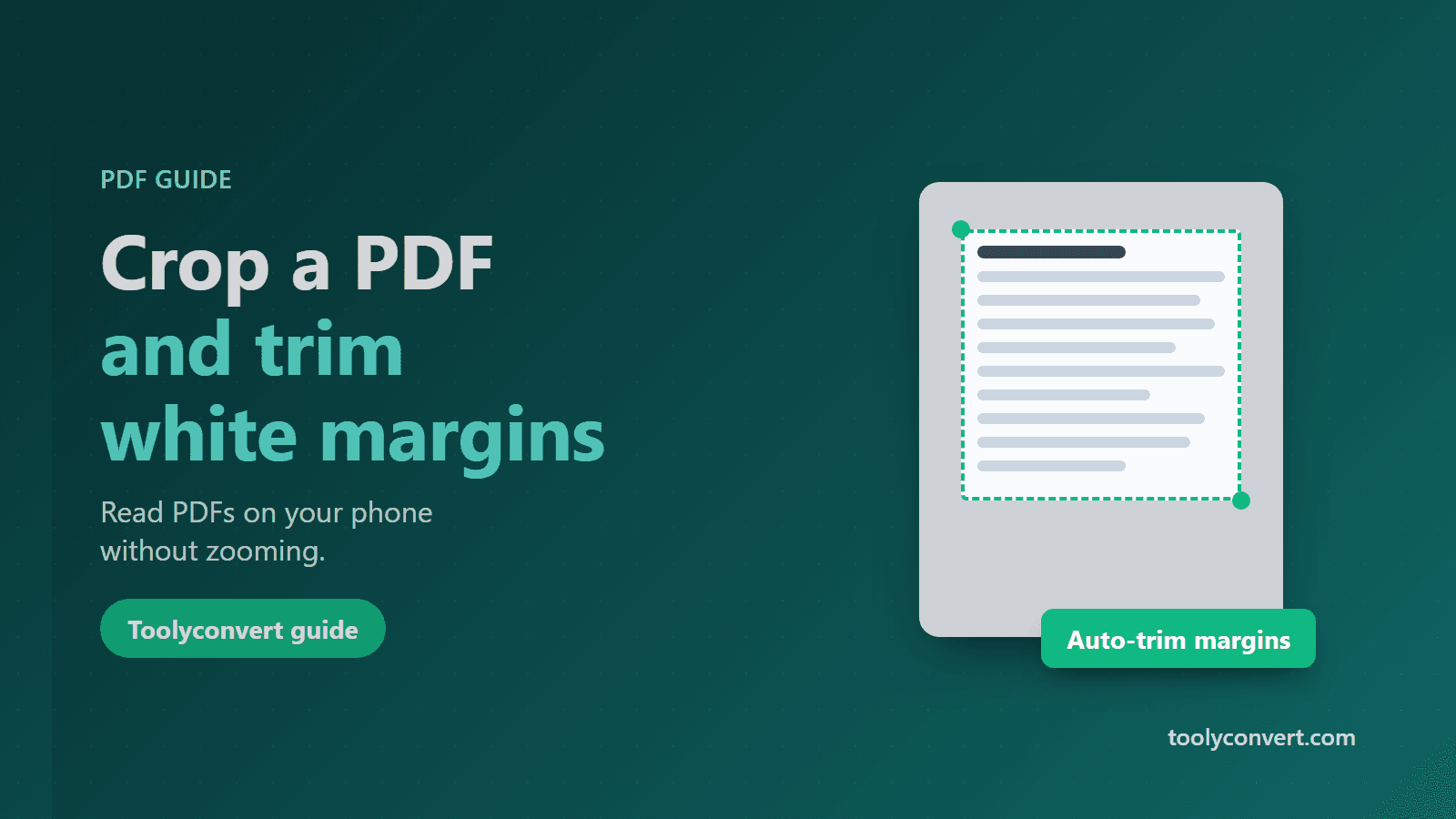
- Check the automatic crop. The box starts fitted around the printed content of the page, with a small margin, so wide white borders are already gone.
- Adjust if needed. Drag the box to move it; drag its top-left or bottom-right corner to resize it. Click Auto-trim white margins to return to the detected area, or Full page to start over from the whole page.
- Click Crop PDF. The same area is applied to every page.
- Download the cropped PDF and open it to check a few pages.
When cropping helps most
- Reading on a phone or e-reader. Less margin means larger text without zooming.
- Scanned pages. Cut away dark scanner edges and uneven borders.
- Printing. Cropped pages print larger on A4, which helps with small print in question papers and notes.
- Slides exported as PDF. Remove the white frame some exports add.
- Labels and tickets. Keep just the label area of an A4 page for a label printer.
Make the crop work for every page
The crop area is set on page 1 and used for all pages, so it works best when pages share a layout.
- If page 1 is a cover with a different layout, take it out first: use Extract PDF Pages to keep only the content pages, crop those, and merge the cover back with Merge PDF.
- If odd and even pages have different margins (common in books), split them into two files, crop each, and merge.
- If some pages are sideways, fix them first with Rotate PDF. Our guide on rotating PDF pages shows how.
- Leave a little margin if you plan to print; printers cannot print right up to the edge of the paper.
Cropping hides, it does not delete
This is the most important thing to understand about cropping. A crop sets the visible area of each page. Everything outside that area is hidden, but it is still inside the file, and it can come back if someone resets the crop in a PDF editor or extracts the text.
So never use cropping to remove:
- account or card numbers,
- someone's name or address,
- confidential figures in a corner of the page.
To remove information permanently, use Redact PDF. Our guide on how to redact a PDF properly explains why redaction is different from covering or cropping.
Will cropping reduce quality or file size?
Quality: no. Pages are not converted to images; text stays sharp and selectable.
File size: not noticeably, because the hidden content is still there. To make the file smaller, use Compress PDF.
Cropping images instead of PDFs
For a photo or a screenshot, use Crop Image, which crops the image itself and supports fixed shapes such as square or 16:9.
Summary
To crop a PDF, add it to Crop PDF, check the automatically fitted crop box (or drag your own), and click Crop PDF to apply it to every page. It is ideal for reading on phones, cleaning up scans and printing larger. Remember that cropping hides content rather than deleting it; use Redact PDF for anything sensitive.