Reviewing a contract, marking a student's assignment or studying for an exam all come down to the same job: pointing at part of a page and saying something about it. On paper you would grab a highlighter and a pen. With a PDF you can do the same, and the result is neater and easier to share.
This guide shows how to annotate a PDF in your browser with the free Annotate PDF tool, which needs no account and does not upload your file.
What "annotating" covers
Annotation is anything you add on top of the original page to explain or react to it:
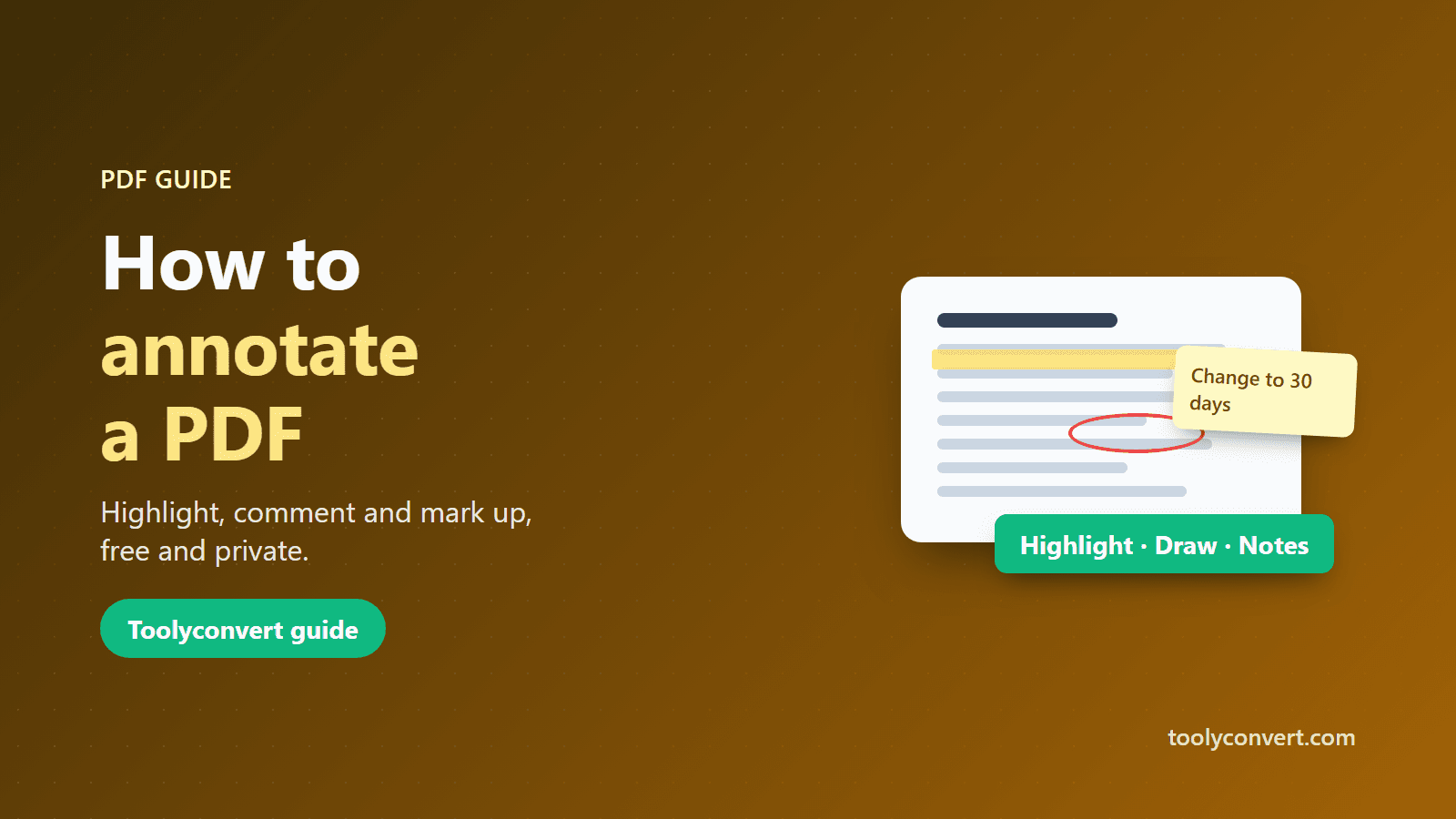
- Highlights to mark important lines.
- Text notes for comments, corrections and questions.
- Freehand drawing for circling, underlining and quick sketches.
- Shapes and arrows to point at a figure, a clause or a total.
- Tick boxes to work through a checklist.
- Images and signatures, such as a stamp or your initials.
Step by step
- Open Annotate PDF and choose your PDF. It opens in a full-screen editor; the file is read in your browser, not sent to a server.
- Find the place to comment. In a long document, press Ctrl+F, type a word and jump straight to it.
- Highlight. Choose Highlight (shortcut H) and drag across the text. Pick a colour in the properties panel.
- Add a note. Choose Text (T), click in the margin and type. Change the font, size, colour, bold or italic if you want the note to stand out.
- Point at things. Use Arrow (A), Rectangle (R) or Ellipse (O) to show exactly what your note refers to.
- Draw freehand with Draw (P): circle a word or underline a sentence. It works with a mouse, a stylus or your finger.
- Fix mistakes with Ctrl+Z (undo) and Ctrl+Y (redo). Any mark can be selected, moved, resized, duplicated or deleted.
- Save the annotated PDF. Your marks are built into the pages.
Make your markup easy to understand
Good annotations are quick to read. A few habits help:
- One colour per meaning. For example yellow for "important", green for "agree", red for "change this". Say what the colours mean in your first note.
- Keep notes short. "Change to 30 days" next to an arrow beats a paragraph on the last page.
- Put the note next to the problem. Readers should not have to hunt for what a comment refers to.
- Number your comments if someone needs to reply to each one: "1. Typo", "2. Wrong total".
Will other people see my annotations?
Yes. When you save, every highlight, note and drawing is drawn into the page itself. That has two practical effects:
- Everyone sees the same thing, whether they open the PDF in Chrome, Adobe Reader, a phone app or print it.
- The marks cannot be edited later as separate comments. Keep your original file if you might want a clean copy.
Annotate, then do more with the pages
While the document is open you can also manage its pages from the page panel: rotate a sideways scan, drag pages into a new order, duplicate a page, delete one you do not need, or add a blank page for longer notes.
If you need to sign the document after reviewing it, the same editor does that too. See how to sign a PDF online.
A word about "whiteout"
The editor has a Whiteout tool that covers part of a page with a white box. It is handy for hiding a stray mark, but it only hides content visually: the original text is still inside the file and can be copied out. To remove names, numbers or other sensitive text for good, use Redact PDF instead. Our guide on how to redact a PDF properly explains the difference.
Common questions
Can I annotate on my phone? Yes. The editor works in mobile browsers, and you can highlight and draw with your finger.
The PDF has a password. Remove it first with Unlock PDF (you need to know the password), then annotate the unlocked copy.
The file is too big to email after annotating. Shrink it with Compress PDF.
Summary
To annotate a PDF, open it in Annotate PDF, use Highlight, Text, Draw, shapes and arrows to mark it up, and save a copy with your marks built in. Nothing is uploaded, there is no watermark, and the person you send it to can see your comments in any PDF viewer.