QR Code Scanner
Scan a QR code with your camera, or from a photo or screenshot. See what it is before you act: link, UPI payment, Wi-Fi password, contact, email or phone.
Used QR Code Scanner? Share how it went to help others.
About this tool
This QR code scanner reads a QR code from your camera or from any picture, right in your browser. On a phone, tap Camera and point the back camera at the code; it scans by itself in a moment and vibrates when it finds one. On a computer, drop an image on the page, choose a file, or simply copy a screenshot and paste it with Ctrl + V — handy for a QR code you received in WhatsApp, an email or a PDF. Each picture is tried at several sizes, and light-on-dark codes are read too, so blurry, small or inverted codes that other scanners miss usually work. Instead of showing only raw text, the scanner tells you what the code is and shows its details clearly. For a website link you see the domain it goes to, with a warning when the link is not secure (http), before you choose to open it. For a UPI payment code you see the UPI ID, the payee name and any amount, so you can check them before paying in your UPI app — a quick way to spot a fake QR sticker. For a Wi-Fi code you see the network name, security type and password, with a button to copy the password. Contact cards (vCard and MeCard), email, phone, SMS and map locations are shown the same way, with a button for the matching action. Your last few scans stay in a list on the page so you can copy them again. Nothing is uploaded: the camera feed and your images are read only on your device.

Camera on a phone; image, drop or paste on a computer.
Keep the whole code inside the box, or add the picture.
See the link domain, UPI name and ID, or Wi-Fi password.
Copy the text, or tap the action: open, call, email.
Live camera scanning, plus upload, drag and drop, or paste a screenshot.
Tries several sizes and inverted colours, so small or light-on-dark codes work.
Links show their domain first; http links get a warning.
See the UPI ID, payee name and amount before you pay.
Read the code, then decide
Make sure a shop QR pays the person you expect.
ExampleSee “Sharma Store · shop@okicici · ₹250.00” before opening your UPI app.
Read the password on a router or café Wi-Fi card.
ExampleNetwork “Home Net”, WPA, password copied in one tap.
A code sent on WhatsApp or email cannot be scanned by the same phone’s camera.
ExampleCopy the image and paste it here with Ctrl + V, or upload the screenshot.
Posters and parcels often carry codes to unknown sites.
ExampleSee that the link goes to “example.com” over http, with a warning.
Business cards and email signatures often have vCard codes.
ExampleRead the name, company, phone and email, then call or email.
No phone at hand? Use the laptop webcam or a photo.
ExampleClick Camera and hold the code up to the webcam.
Get a read on the first try
Tilt a shiny code or screen a little so no light reflects off it.
Hold the camera so the code fills most of the guide box, with a small margin.
If a photo has several codes, crop it to the one you want before uploading.
Fake QR stickers over a real one are a common scam. Match the payee name before you pay.
If the camera does not start, allow camera access for this site in your browser settings.
On a computer, Win + Shift + S or Cmd + Shift + 4, then Ctrl + V here.
Senior Software Engineer · Developer of Toolyconvert
Hemant developed QR Code Scanner and tests it on desktop and mobile with real files. He is a senior software engineer from Dehradun, India, building websites since 2014, and designed and developed Toolyconvert end to end.
Last updated 14 November 2026
Turn paper into a clean multi-page PDF using your phone camera and a browser. Lighting, angle and file-size tips so portals accept your scan first time.
Read article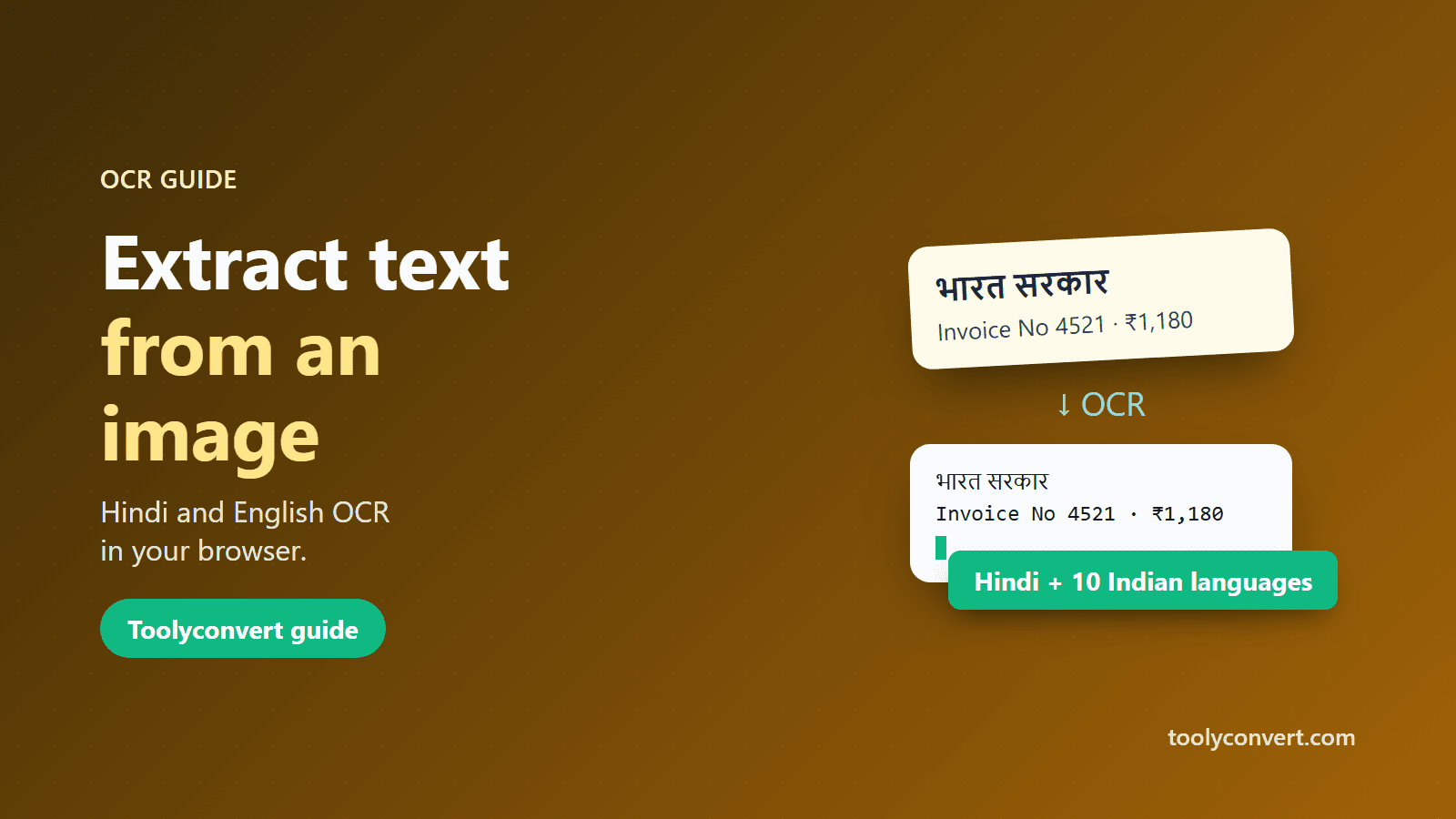
Turn photos, screenshots and scans into editable text with free browser OCR, including Hindi and other Indian languages. Tips for accurate results.
Read article
The Latin source of the world’s most famous placeholder text, why designers use it, the myths about its age, and when real words work better.
Read article