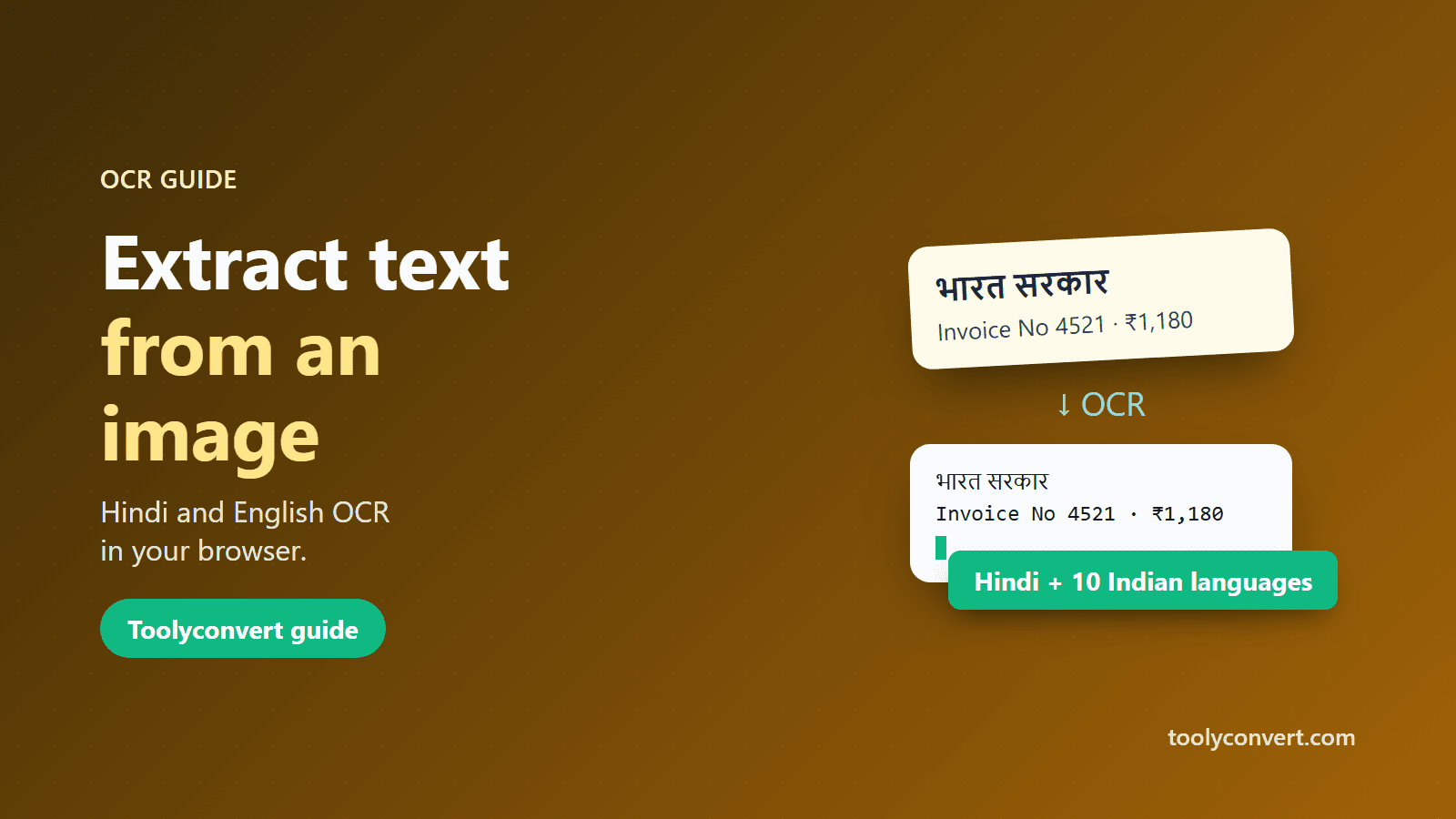
A photo of a notice board, a screenshot of a slide, a scanned page from a book: the words are right there, but you cannot select them. Retyping is slow and error-prone, especially in Hindi or another Indian script. Optical character recognition (OCR) reads the text for you.
This guide uses the free Image to Text (OCR) tool, which runs in your browser, so your image is not uploaded.
Step by step
- Open Image to Text and add the image: drop it on the page, click to choose it, or paste a screenshot with Ctrl+V (Cmd+V on a Mac).
- Choose the language of the text. For a document that mixes English and Hindi, choose English + Hindi.
- Click Extract Text. A progress bar shows the recognition. The first time you use a language, its data (a few MB) is downloaded and then cached, so later scans are faster.
- Check and correct the text in the box. It is editable, so fix any wrong words right there.
- Copy the text, or save it as a .txt file.
Supported languages
- English, and English + Hindi for mixed text
- Indian languages: Hindi, Marathi, Bengali, Gujarati, Punjabi, Tamil, Telugu, Kannada, Malayalam, Urdu
- Others: Spanish, French, German, Italian, Portuguese, Arabic, Chinese (Simplified), Japanese, Korean, Russian
Picking the right language matters: an English setting will not read Devanagari, and a Hindi-only setting reads English words poorly.
How to get accurate results
OCR accuracy depends mostly on the picture. Most errors come from one of these, and each is easy to fix:
- Blur. Hold the phone steady, tap to focus, and take the photo again if the letters are soft.
- Bad light and shadows. Photograph near a window or under a bright light, with no shadow across the text.
- Angle. Hold the camera straight above the page. Text photographed at an angle gets distorted.
- Small text. Move closer so the text fills the frame, or crop the image to the text area with Crop Image.
- Busy backgrounds. Text over photos or patterns is hard to read. Crop to the plain text area.
- Low contrast. Grey text on a grey background is difficult. Dark text on a light background works best.
Screenshots are ideal: they are perfectly sharp and straight. To copy text from a slide, a video frame or an app, take a screenshot and paste it with Ctrl+V.
What OCR cannot do well
- Joined handwriting. OCR is built for printed text. Neat block capitals sometimes work; cursive usually does not.
- Decorative fonts and text set in unusual layouts (circles, vertical text).
- Tables. The text comes out line by line; you may need to rebuild the table in a sheet.
Images vs PDFs
This tool reads one image at a time. For a scanned PDF with many pages, use OCR PDF, which adds a searchable text layer to the whole document so you can search and copy from any page.
To scan paper straight into a PDF with your phone, see how to scan documents to PDF with your phone.
Is my image private?
Yes. The OCR engine runs inside your browser and reads the image on your device; the picture is never sent to a server. That makes it suitable for documents you would rather not upload, such as letters or bills.
Useful next steps
- Translate the extracted text with Live Translate.
- Count words for an assignment with Word Counter.
- Copy contact details from a visiting card and save them to your phone.
Summary
To extract text from an image, open Image to Text, add or paste the image, choose the language (English + Hindi for mixed text), click Extract Text, then correct, copy or save the result. Sharp, well-lit, straight images give the best accuracy, and for multi-page scanned PDFs, use OCR PDF.