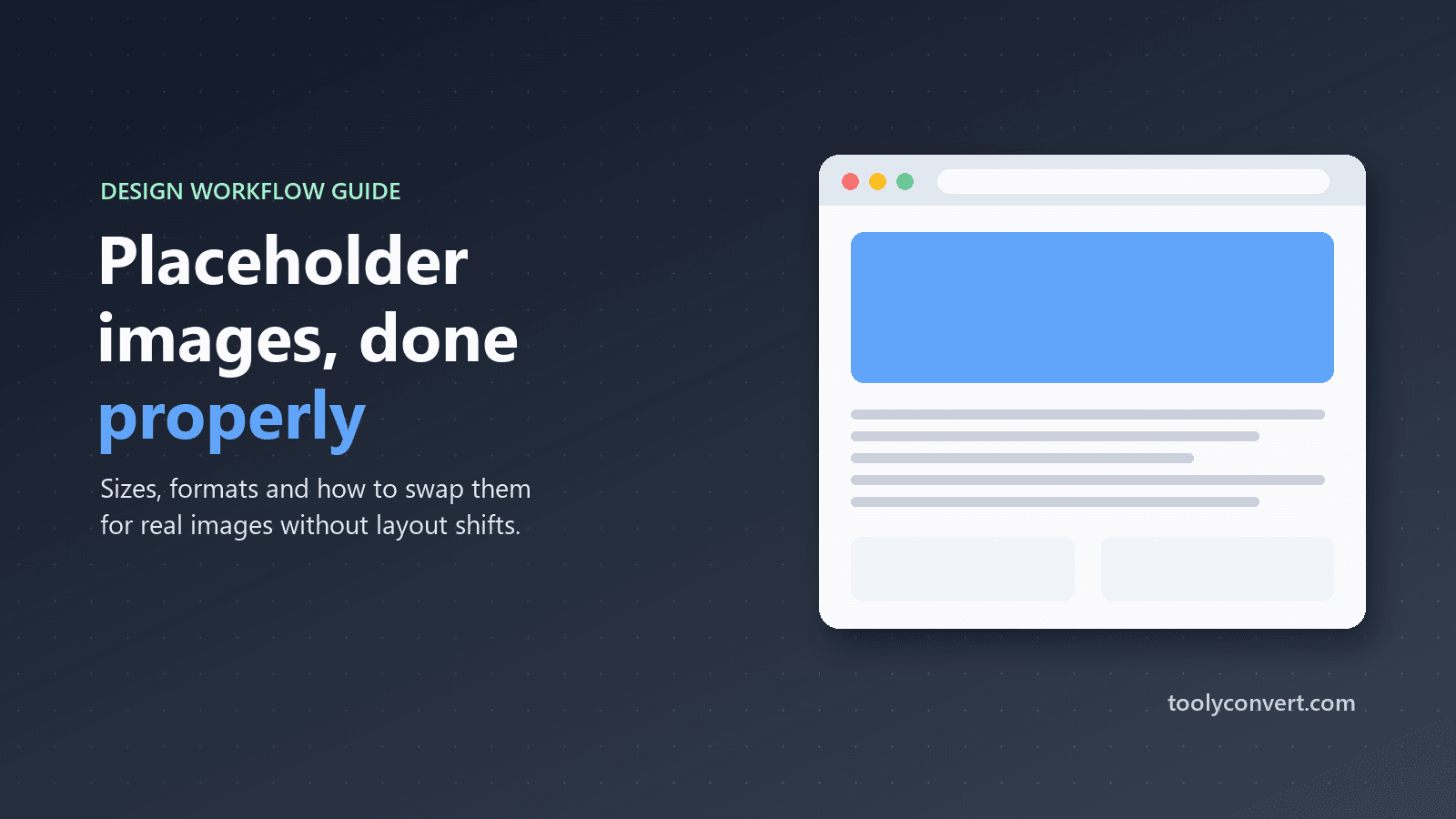
Every project has that awkward middle stage. The layout is taking shape, the client wants to see progress, but the photos are not ready yet. The photographer is booked for next week, the product shots are still in a warehouse, and the illustrations are "nearly done". So the page is full of gaps, or worse, random stock photos that the client falls in love with and then cannot have.
Good placeholder images solve this quietly. They hold the space, show everyone what goes where, and make the design feel real without making promises about the final content. This guide covers why they matter, which sizes to use, which format to choose, and how to swap them for real images without breaking the layout.
Why placeholders are worth doing properly
It is tempting to drop in whatever image is at hand. A few minutes spent on proper placeholders pays off:
- They set expectations. A grey box labelled "Team photo, 1200 × 600" tells the client exactly what will appear there. A random stock photo invites debate about a picture that will not be used.
- They lock in the layout. When the placeholder has the same dimensions as the final image, the design is tested at its real proportions from day one.
- They guide the people producing content. The photographer and designer can see precisely which sizes and shapes are needed.
- They keep you out of licensing trouble. Using images you do not have rights to, even temporarily, has a way of ending up on the live site.
A size guide for common layouts
Placeholders should match the proportions of the final images. These are sensible starting points for typical web layouts:
| Element | Typical size | Aspect ratio |
|---|---|---|
| Hero banner | 1200 × 600 | 2:1 |
| Blog or article cover | 1200 × 675 | 16:9 |
| Card thumbnail | 600 × 400 | 3:2 |
| Product photo | 800 × 800 | 1:1 |
| Profile or avatar | 200 × 200 | 1:1 |
| Email header | 600 × 200 | 3:1 |
| Social share image | 1200 × 630 | about 1.91:1 |
Remember that high-resolution screens show images at two or three times their CSS size, so a 600-pixel card image may need a 1200-pixel file to look crisp; our guide to screen resolution, viewport and pixel ratio explains why.
The exact pixels matter less than the aspect ratio. If the real product photos will be square, every product placeholder should be square too, whatever size it is displayed at.
Making placeholders that communicate
The Placeholder Image Generator creates simple images in your browser. Set the width and height (from 100 to 1200 pixels each), choose background and text colours, and optionally type a label. Without a label, the image shows its own size, such as 600 × 400.
A few habits make them far more useful:
- Label by purpose, not just size. "Hero: summer campaign" or "Product: front view" helps everyone understand the page at a glance.
- Use neutral colours. Soft greys or your brand's lightest tint keep attention on the layout, not the placeholder.
- Keep text readable. Pick a text colour with enough contrast against the background; labels are often read in screenshots during reviews.
- Use a distinct colour for missing content you are waiting on, so outstanding items stand out in a long page.
PNG, SVG or data URI?
The generator offers several outputs, and each suits a different situation.
SVG
A tiny text file that stays perfectly sharp at any size and on any screen. Ideal for web mockups and prototypes. Most modern design tools can import it too.
PNG
A normal image file that works everywhere, including tools and apps that do not accept SVG. Use it for design software, slide decks, content management systems and email templates.
Data URI
The image encoded directly into a line of text that you paste into HTML or CSS, with no file to host:
<img src="image/svg+xml;charset=utf-8,..." width="600" height="400" alt="">Perfect for quick prototypes, code examples and test pages. For large or repeated images, a real file is lighter.
Hosted link
The tool also gives you a matching link from placehold.co, a free public placeholder service. It is convenient when you just need a URL, but it depends on that service being online whenever your page loads, so it is best kept for prototypes rather than anything long-lived.
Replacing placeholders without breaking the layout
The moment real images arrive is where many projects wobble. Pages jump around, crops cut off faces, and file sizes balloon. A little preparation prevents all of it.
Always set dimensions
Give every image width and height attributes, or a CSS aspect ratio, from the start. The browser then reserves the right amount of space before the image loads, so the page does not shift when it appears. That shifting is exactly what Google measures as Cumulative Layout Shift, one of the Core Web Vitals; our guide to Core Web Vitals explains why it matters.
Match the aspect ratio
If the real photo has a different shape from the placeholder, it will either be cropped or distorted. Ask for images in the agreed ratio, or crop them before uploading.
Resize before uploading
Photos straight from a camera are often 5000 pixels wide and several megabytes. Resize them to the size they are displayed at and use an efficient format like WebP; the Image Resizer does both in one step without uploading your images anywhere.
Hunt down leftovers
It is surprisingly common for one forgotten placeholder to reach the live site, often on a rarely visited page. Before launch, search your templates and content for placeholder URLs and labels, and run key pages through the Broken Image Checker, which also reveals images that are far larger than they need to be. Our guide to finding broken images covers a full pre-launch check.
Placeholders for developers
Placeholders are just as useful in code as in design:
- Seed data and demo accounts look far more realistic with images of the right size.
- Component libraries can show every card, avatar and banner state without depending on real assets.
- Automated tests of layouts are more reliable with predictable, fixed-size images.
- Loading states can use a neutral placeholder colour matching the final image area, so the page feels stable while real images load.
- Documentation and tutorials stay free of copyright questions when every example image is a plain, labelled placeholder.
Remember to give placeholder images an empty alt attribute, alt="", when they are purely decorative in a prototype, and meaningful alt text once the real content arrives.
A tidy workflow from wireframe to launch
- Agree the image list and aspect ratios for each page early.
- Generate labelled placeholders at those ratios and build the layout with them.
- Share the list with whoever produces the real images, including sizes.
- Replace placeholders page by page as images arrive, resizing each one.
- Before launch, search for leftovers and check key pages for broken or oversized images.
It is not glamorous work, but it is the kind of quiet organisation that makes a project feel calm instead of chaotic. Start with the Placeholder Image Generator on your next wireframe and notice how much easier the review conversations become.