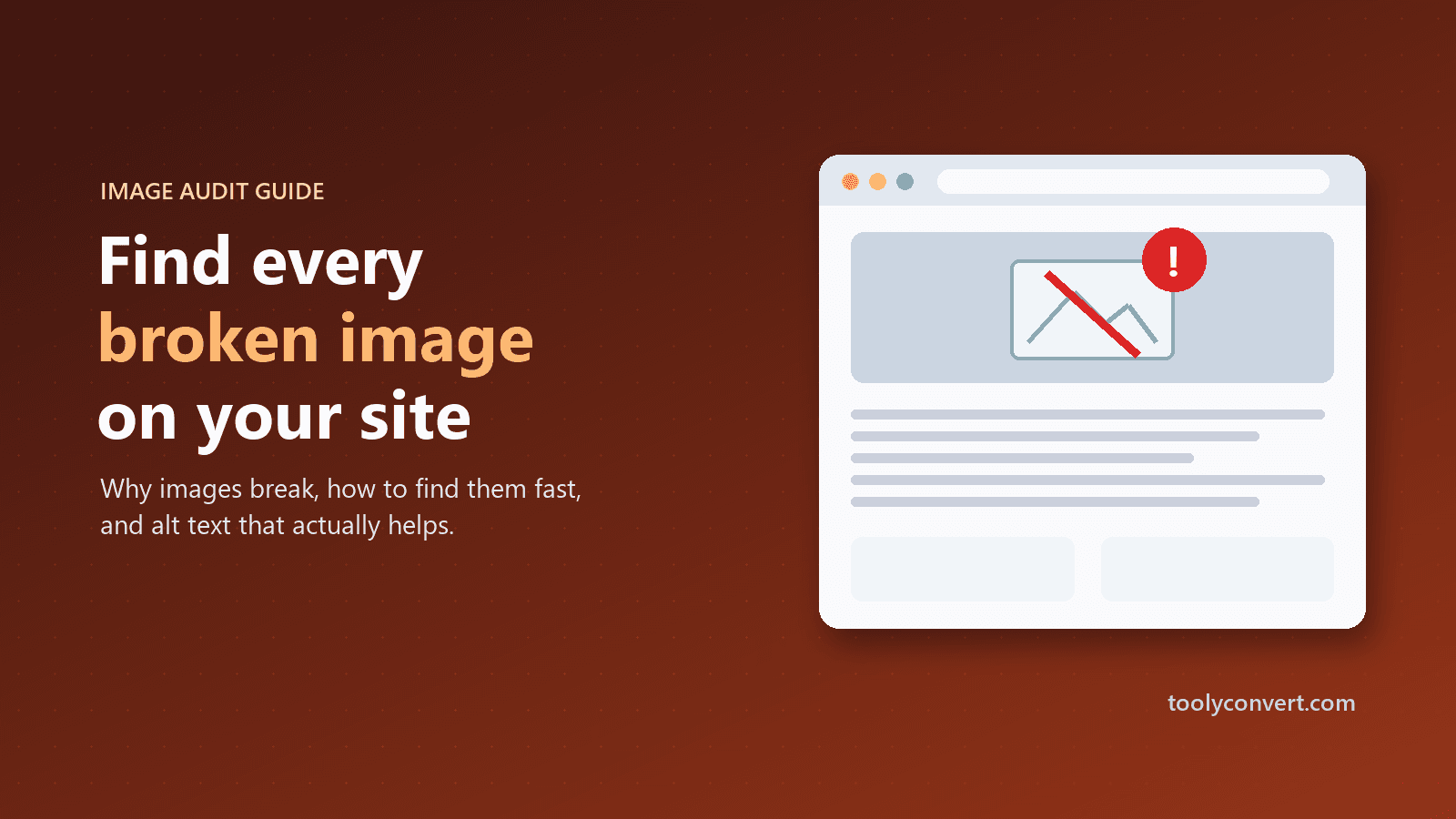
You open your own website to show someone a page you are proud of, and there it is: a little broken-image icon where your best photo used to be. Maybe a grey box with an alt text caption, maybe just an empty gap. It is a small thing, but it changes how the whole page feels. It looks unfinished. It looks abandoned. And if you noticed it by accident, you start to wonder how many other pages have the same problem.
The good news is that broken images almost always come from a handful of predictable causes, and finding them does not take hours. This guide walks through why images break, how to find every broken one on a page in a few minutes, and how to write alt text that does its job for both people and search engines.
What a broken image actually costs you
It is tempting to treat a missing image as cosmetic. It is not.
- Trust drops instantly. Visitors judge a page in seconds. A broken image signals that nobody is looking after the site, which is exactly the wrong message for a shop, a portfolio or a service business.
- Product pages stop selling. People rarely buy what they cannot see. A product with a missing photo is, for most shoppers, a product that does not exist.
- Image search traffic disappears. An image that does not load cannot appear in Google Images, and the page loses one of its easiest sources of visits.
- Accessibility suffers twice. If the image is missing and the alt text is also missing, a screen reader user gets nothing at all where the content should be.
None of this shows up as an error in your dashboard. The page still returns 200 OK. That is what makes broken images so easy to miss for months.
The five real reasons images break
After you have fixed a few of these, you start to recognise the patterns. Nearly every broken image falls into one of these groups.
1. The file was deleted or renamed
Someone tidied up the media library, removed "unused" files, or renamed hero-final-v2.jpg to hero.jpg. The page still points at the old name. This is the single most common cause on WordPress sites and anywhere several people manage content.
2. The site moved and the image addresses did not
After a migration to a new domain, a switch from HTTP to HTTPS, or a move from a staging site to production, images inside old posts often still point at the previous address. They may keep working for a while if the old server is still up, then fail the day it is switched off.
3. The image lives on someone else's server
Hotlinked images, those embedded straight from another website, are borrowed, not owned. The other site can delete them, rename them, or block requests from other domains at any moment. Partner logos, product photos copied from a supplier's site and images from old image hosts are classic examples.
4. A CDN, cache or plugin changed the address
Image optimisation plugins and CDNs often rewrite image URLs. If the plugin is removed, the CDN settings change or a cache is purged incorrectly, pages can end up pointing at addresses that no longer exist.
5. The address is simply wrong
A missing letter, a stray space, the wrong folder, .jpeg instead of .jpg, or a link to a web page about an image instead of the image file itself. These usually come from hand-written HTML, email templates and copy-and-paste mistakes.
How to find every broken image on a page
You could scroll through every page looking for gaps, but that misses images below the fold, inside tabs and in hidden sections. A faster, more reliable way is to check the page's HTML directly.
- Open the page in your browser and press Ctrl+U (or Cmd+Option+U on a Mac) to view the source.
- Select all the source code and copy it.
- Paste it into the Broken Image Checker.
The tool finds every <img> tag in the HTML and actually loads each image in your browser, the same way a visitor's browser would. Working images are listed with their real pixel size. Broken ones are flagged, along with images that take longer than 15 seconds to respond and images with an empty source.
A few things are worth knowing so the results make sense:
- Relative addresses are listed separately. An address like
/uploads/photo.jpgonly works next to the site it belongs to. Copying the source from the live page usually gives you full addresses; if not, add your domain in front of the path. - Lazy-loaded images may hide their real address. Some lazy-loading scripts put a tiny placeholder in
srcand the real address indata-src. If a page uses one, copy the HTML from your browser's developer tools (the Elements panel) after scrolling to the bottom, when the real addresses have been filled in. - Only the main image address is checked. Alternative sizes in
srcsetand images set as CSS backgrounds are not included, so check those separately if your theme relies on them.
Fixing what you find
Once you have a list, most fixes take a minute each.
| What you see | Most likely cause | Fix |
|---|---|---|
| Broken, the address points at your old domain | Site migration | Update the addresses, or run a search-and-replace on the database |
| Broken, the address is on another website | Hotlinking | Download the image (if you have the rights), upload it to your own site, and update the link |
| Broken, the file name looks close but not exact | Renamed or deleted file | Re-upload the original, or point the page at the new file name |
| Loads, but the size is 4000 × 3000 px | Oversized original | Resize it to the size it is displayed at |
| Loads, alt text missing | Content habit | Add a short description (see below) |
Opening a broken address in a new browser tab is a quick way to confirm the cause. A 404 page means the file is gone. A normal web page instead of a picture means the link points at the wrong place. A login screen means the image is private.
When the checker shows an image that is far larger than it needs to be, such as a 3000-pixel photo shown in a 300-pixel card, it is worth fixing too. It will not break the page, but it slows it down. The Image Resizer can shrink it to the right dimensions, and our guide on resizing a photo to a specific KB size explains how to hit a file-size target without making it blurry.
Alt text: the part everyone gets wrong
The same check flags images with no alt attribute. Alt text is the short description a screen reader reads aloud, the text shown when an image fails to load, and one of the main ways search engines understand what a picture shows.
There are three possible states, and only two of them are correct:
- Descriptive alt text such as
alt="Handmade oak dining table with six chairs". Right for any image that carries meaning. - Empty alt text, written as
alt="". Right for purely decorative images like dividers, background shapes and icons next to text that already says the same thing. It tells screen readers to skip the image. - No alt attribute at all. Always wrong. Screen readers may read out the file name instead, which helps nobody.
A few habits make alt text genuinely useful:
- Describe what the image shows in the context of the page, in one short sentence.
- Do not start with "image of" or "picture of". Screen readers already announce that it is an image.
- Include a relevant keyword only if it naturally describes the picture. Alt text stuffed with keywords is a poor experience and does not help rankings.
- For images that contain text, such as a banner with an offer, put that text in the alt attribute.
Stop images breaking in the first place
Fixing broken images once is satisfying. Not having to do it again is better.
- Host your own images. Avoid hotlinking. If an image matters, it belongs on your server.
- Check after every migration. Add a broken image check to your launch checklist, right next to checking redirects with the Redirect Checker.
- Be careful with media clean-up plugins. "Unused" detection is not perfect. Back up before deleting, and spot-check key pages afterwards.
- Check links at the same time. Pages with broken images often have broken links too. Run the same page through the Broken Link Checker.
- Watch page speed. Oversized images are the most common reason a page is slow to show its main content. Our guide to Core Web Vitals explains how image size affects Largest Contentful Paint.
A five-minute routine worth keeping
You do not need an expensive monitoring service to keep images healthy. Once a month, or after any big change, check your homepage, your most visited pages and your best-selling products. Copy the source, paste it into the Broken Image Checker, fix what is red, and add alt text where it is missing.
It is a small ritual, but it means the next time you show someone your site, the page looks exactly the way you meant it to.