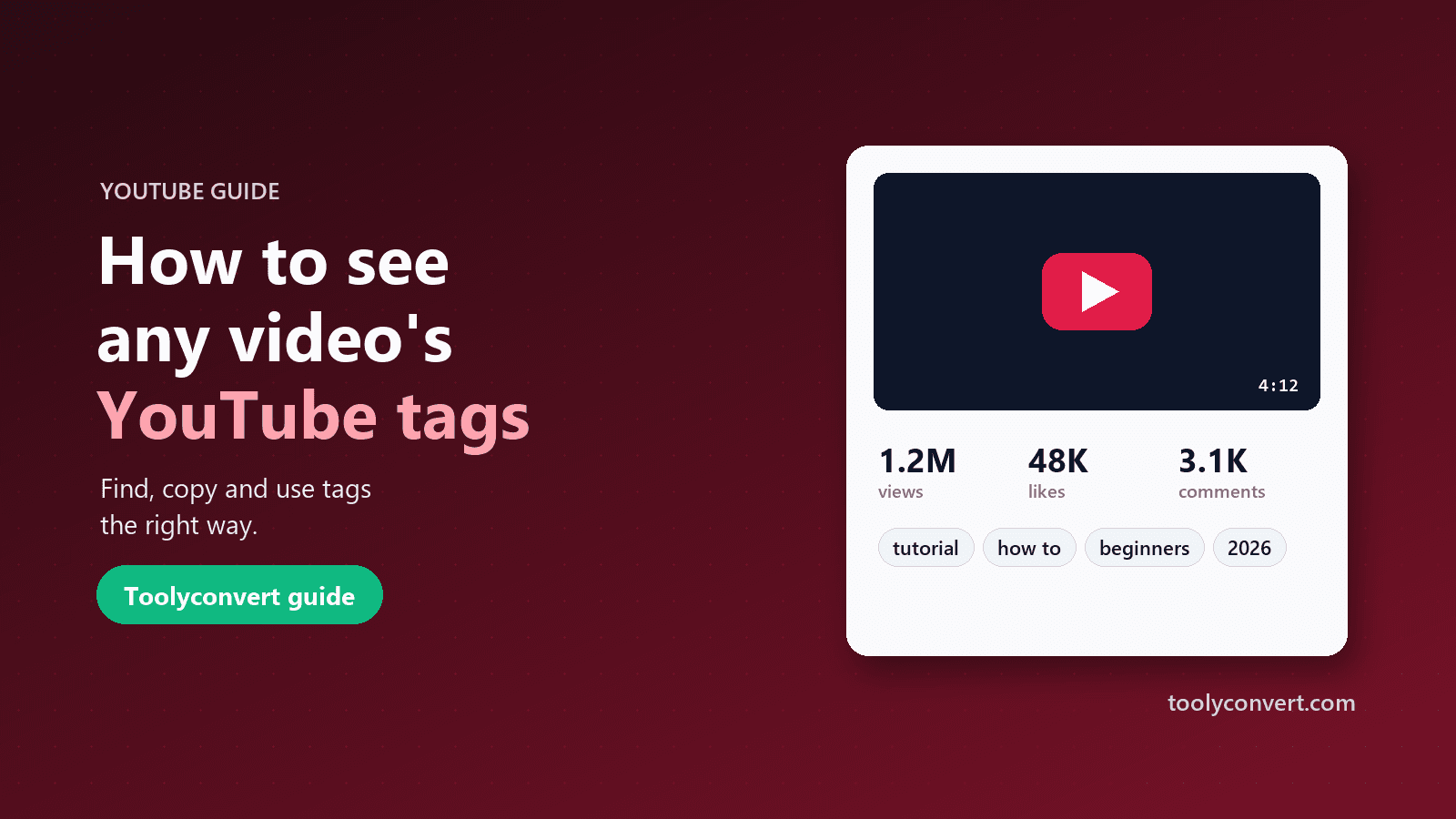
Every YouTube video can carry a hidden list of tags: words and phrases the creator added in YouTube Studio to describe what the video is about. You will not find them on the watch page, and YouTube's mobile app does not show them either. Yet creators, marketers and researchers often want to see them, to learn how a successful video was described, to check a competitor's keywords or simply to understand how YouTube categorises a topic.
This guide explains what tags are, how much they really matter, how to see the tags on any public video in a few seconds, and how to use what you find without falling into the old habit of tag stuffing. You can follow along with the free YouTube Video Info & Tag Extractor.
What YouTube tags are (and what they are not)
Tags are optional descriptive keywords attached to a video. A cooking video might use tags such as "easy pasta recipe", "weeknight dinner" and "one pot pasta". They are entered in the Tags field under "Show more" when you upload or edit a video in YouTube Studio.
A few facts are worth knowing before you start collecting them:
- The limit is 500 characters in total, across all tags. Commas between tags count, and a tag with spaces is counted with a little extra overhead, so the practical limit is slightly lower.
- Tags are not shown to viewers. They exist for YouTube's systems, not for people browsing.
- Tags are different from hashtags. Hashtags (#pasta) live in the title or description, are visible and clickable, and link to a hashtag page. Tags are invisible.
- Many videos have no tags at all. Plenty of large channels skip them entirely.
How much do tags matter for ranking?
Less than most people think. YouTube's own help pages say that tags play a minimal role in a video's discovery, and that they are most useful when your content is commonly misspelled. The title, thumbnail and description, together with how viewers respond to the video (whether they click, how long they watch, whether they come back), carry far more weight.
That does not make tags useless. They help in a few specific situations:
- Misspellings and variants. A video about "Tchaikovsky" might add "Tchaikovski" and "Chaikovsky".
- Brand and series names. A tag with your channel or series name can help your own videos appear next to each other.
- Ambiguous topics. "Python" could be a snake or a programming language; a tag like "python programming" adds context.
So treat tags as a small finishing touch, and treat the tags you find on other videos as research material rather than a secret formula.
How to see the tags on any YouTube video
The quickest way is to use a tag extractor that reads the video's public data for you:
- Copy the video link. Any format works: a normal watch link, a youtu.be short link, a Shorts link, a live link or an embed link. You can also paste just the 11-character video ID.
- Open the YouTube Video Info & Tag Extractor and paste the link.
- Press "Get video info". The tool looks the video up through YouTube's official API.
- Read the Tags section. Every tag is listed as a chip, with a count, and a meter shows how many of the 500 characters the creator used.
- Press "Copy all tags" to copy the full list, separated by commas, ready for a spreadsheet or your notes.
If the tags section says the video has no public tags, that is accurate: the creator did not add any. The tool shows that plainly instead of inventing suggestions.
Other ways exist. You can view the page source of a watch page in a desktop browser and search for "keywords", but the format is messy and it changes from time to time. Browser extensions can show tags too, but they need broad permissions to read every page you visit. A dedicated tool that only sees the link you paste is simpler and more private.
What else the video data tells you
Tags are only one part of a video's metadata. The same lookup shows a lot more that is useful for research:
- Views, likes and comments, straight from YouTube. Some creators hide their like count; when that happens the tool shows "Hidden" rather than guessing.
- Engagement rate: likes plus comments divided by views, as a percentage. It helps you compare a video with 50,000 views against one with 5 million on fairer terms.
- Duration, upload date and category, including how long ago the video was published.
- Details such as HD or SD, captions, made-for-kids status, language, whether embedding is allowed and whether it is a live stream.
- The description, organised. Chapters (timestamps) become clickable, and hashtags and links are pulled out into their own lists, which makes long descriptions much easier to scan.
- Top comments, loaded on demand, often reveal what viewers actually wanted from the video.
If you want the thumbnail as well, the tool links straight to the YouTube Thumbnail Downloader, which lists only the sizes that really exist for that video.
How to use competitor tags without copying them
Looking at the tags on the top videos for your topic is a good way to understand the vocabulary your audience uses. Here is a simple, honest process:
- Pick five to ten videos that rank well for the topic you want to cover, ideally recent ones from channels about your size.
- Extract their tags and paste them into one list.
- Look for patterns. Which phrases appear on several videos? Which spellings or variants come up? Those are the terms worth considering.
- Ignore irrelevant tags. Some creators add unrelated popular terms; copying those adds nothing and can confuse YouTube's understanding of your video.
- Write your own short list. Start with your main topic, add two or three variants and misspellings, add your channel or series name, and stop. Five to fifteen focused tags are plenty.
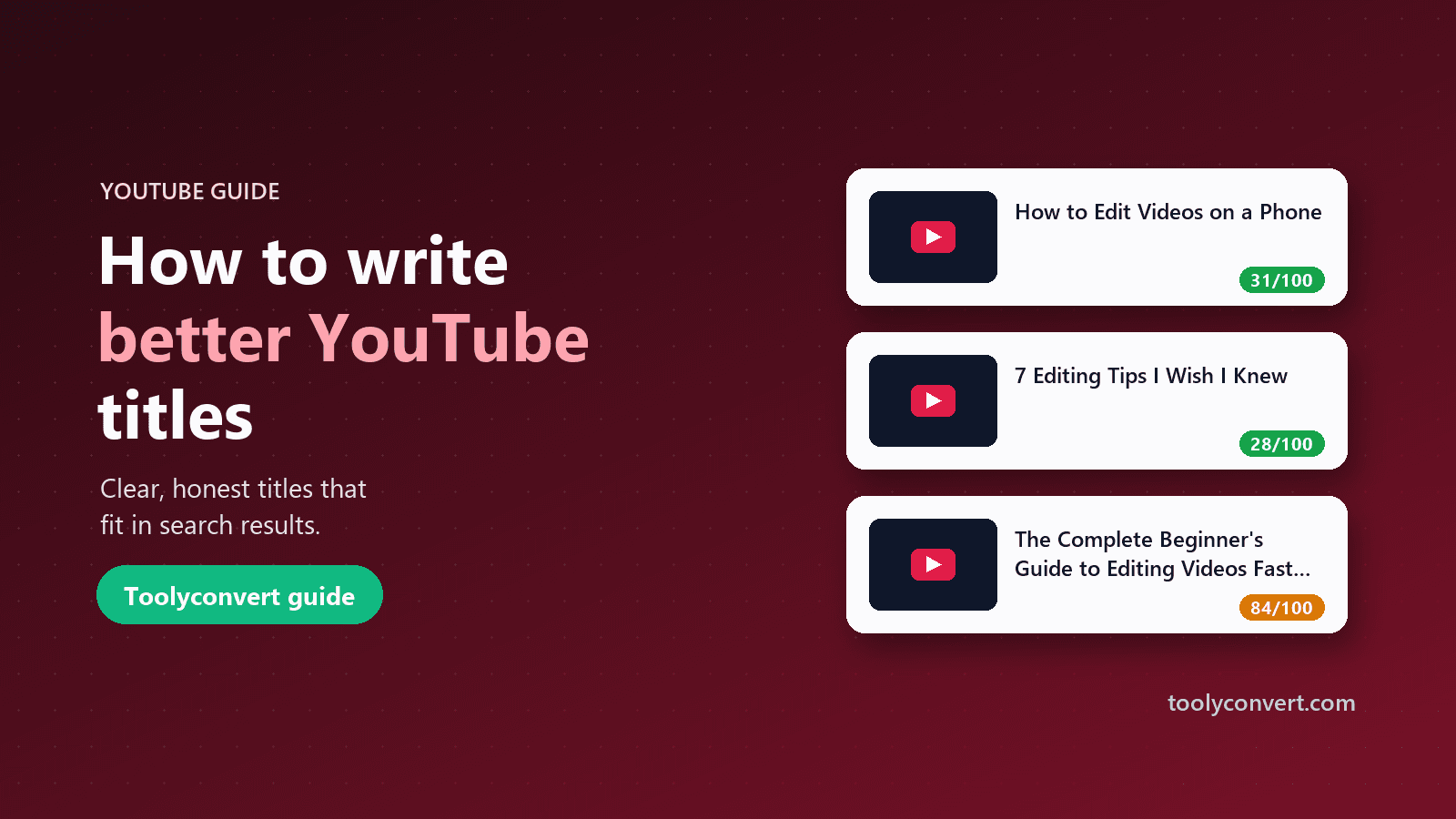
Most of the value from this research belongs in your title and description, not your tags. If several top videos use the phrase "for beginners", that phrase probably belongs in your title. Our guide on how to write better YouTube titles covers that step.
Tags, hashtags and the description: getting the balance right
Since tags carry little weight, it pays to put more effort where viewers and search engines look:
- Title. Put the main search phrase near the start and keep the title under about 70 characters so it is not cut off. The YouTube Title Generator has a length checker.
- Description. The first two lines show above the "more" link, so lead with a clear summary that includes your main phrase. Then add useful detail, links and credits.
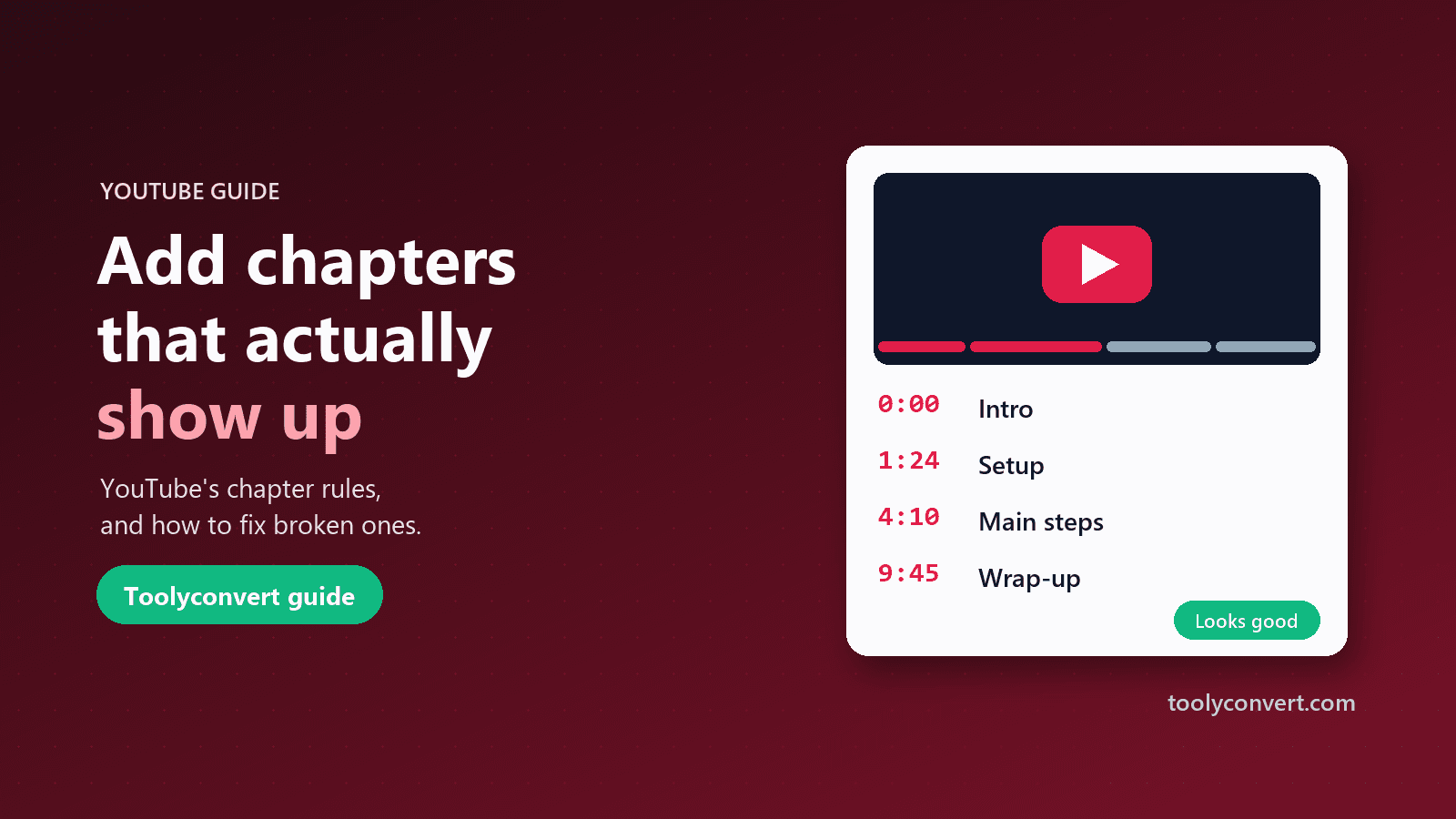
- Chapters. Timestamps in the description turn into chapters, help viewers jump around and can appear as "key moments" in Google. The Timestamp & Chapter Generator checks them against YouTube's rules, and our chapters guide explains them in detail.
- Hashtags. A few relevant hashtags in the description are enough. YouTube ignores all hashtags on a video that uses more than 60, and misleading hashtags can break its policies.
Common questions about YouTube tags
Can I see tags on my phone? Not in the YouTube app. Open the tag extractor in your phone's browser and paste the link from the app's Share button.
Why do two similar videos have completely different tags? Because tags are optional and free-form. Some creators write them carefully, some paste a template, and many skip them.
Does copying a popular video's tags make my video rank like it? No. Ranking depends mostly on how viewers respond to your video. Copied tags that do not match your content can even work against you.
Are tags case-sensitive? No. "Pasta Recipe" and "pasta recipe" are treated the same, so do not waste characters on duplicates.
How often are the numbers updated? The extractor uses YouTube's official API and refreshes each video every few hours, so a brand-new upload may lag slightly behind the live view counter.
Quick checklist
- Use the tag extractor to research five to ten top videos for your topic.
- Note shared phrases, variants and misspellings.
- Put the most important phrase in your title and the first lines of your description.
- Add a short, focused set of tags, including your channel or series name.
- Add chapters and a few relevant hashtags.
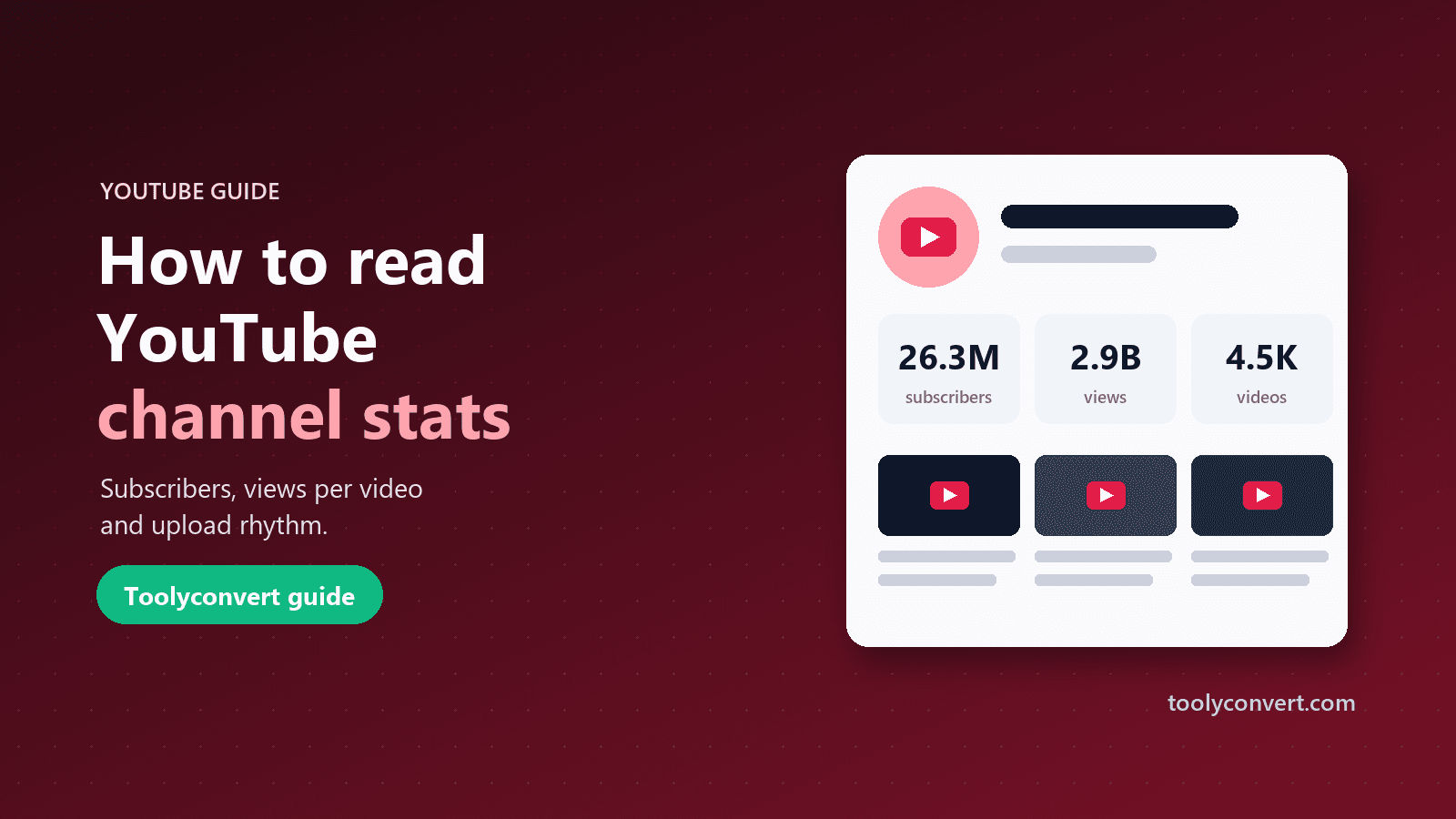
- Check the channel behind a video with YouTube Channel Stats before assuming its success is about tags at all.
Tags will not make or break a video, but seeing them is a quick window into how other creators think about a topic. Use them as research, put your real effort into the title, thumbnail and content, and let viewers do the rest.