Whether you are choosing a creator for a sponsorship, benchmarking your own channel or just curious how big a favourite channel really is, the first question is usually the same: how many subscribers and views does it have? YouTube shows some of this on the channel page, but the useful comparisons, such as average views per video and how often the channel posts, take some working out.
This guide explains what public channel statistics YouTube shares, how to look them up for any channel in seconds, and how to read them without being fooled by big but misleading numbers. You can follow along with the free YouTube Channel Stats tool.
What YouTube makes public about a channel
YouTube shares a small set of numbers for every public channel:
- Subscribers. Shown rounded once a channel passes 1,000 subscribers, and owners can hide the count completely.
- Total views. The sum of views across the channel's public videos.
- Video count. The number of public videos.
- Join date and country, if the owner has set one.
- The latest uploads, in order.
Everything else, such as watch time, revenue, audience age, traffic sources and click-through rate, is private and visible only to the channel owner in YouTube Studio. Any website that claims to show another channel's exact earnings or watch time is estimating, often very loosely.
Why subscriber counts are rounded
Since 2019, YouTube has shown public subscriber counts abbreviated to three significant figures. A channel with 1,234,567 subscribers appears as 1.23M; one with 45,678 appears as 45.6K. The same rounding applies to the data YouTube shares with tools through its API, so no outside tool can show an exact live subscriber count for a large channel. If a site shows a precise number that ticks up every second, it is estimating between the rounded values.
This rounding is the reason small daily changes often do not show. A channel at 1.23M has to grow by roughly 10,000 subscribers before the public number changes to 1.24M.
How to look up any channel's stats
- Find the channel. Copy its link from the address bar (for example youtube.com/@name or youtube.com/channel/UC…), or just note its @handle.
- Open YouTube Channel Stats and paste the link, the @handle or the channel ID.
- Press "Get channel stats".
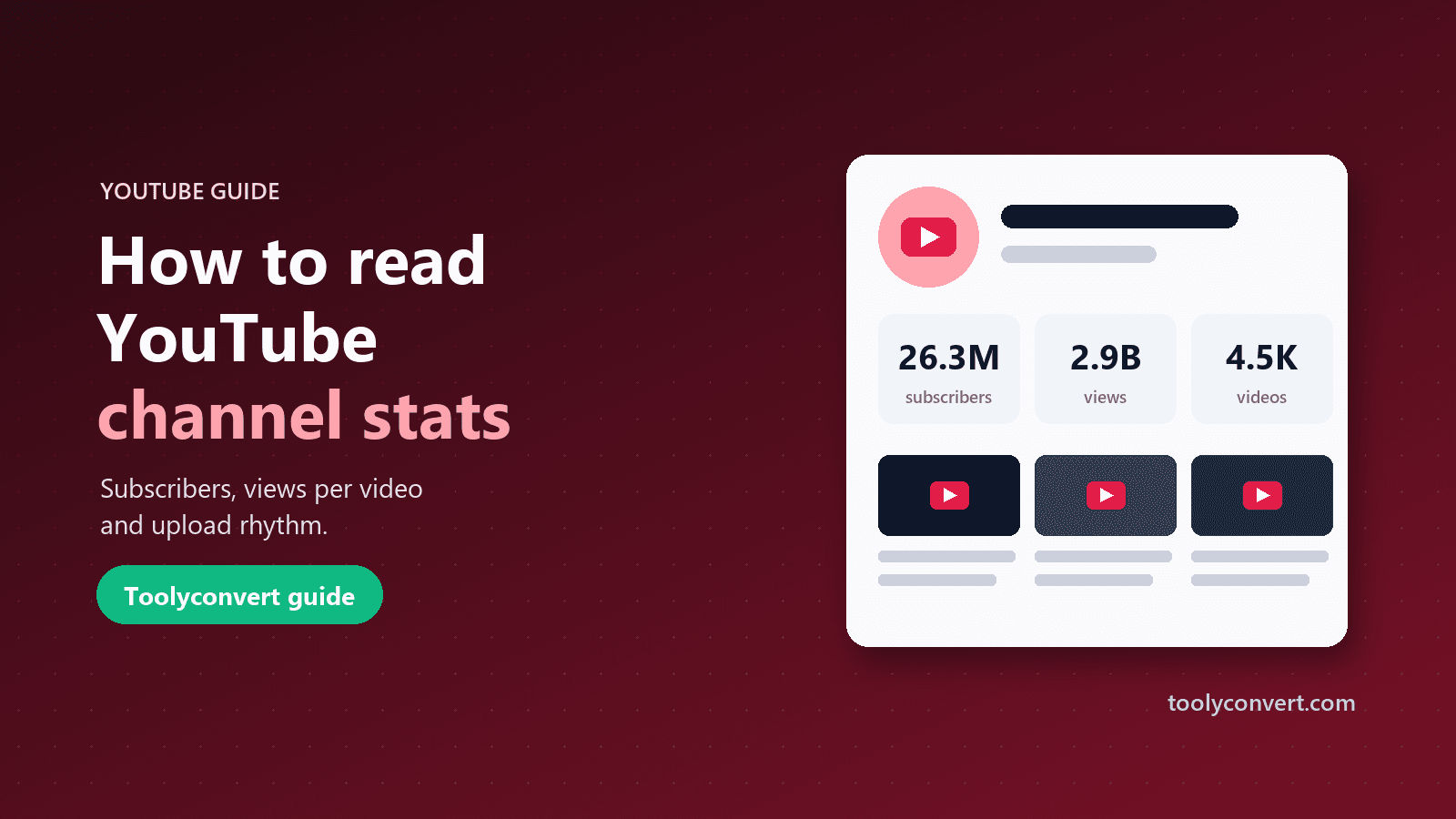
- Read the summary. You see the channel's name, avatar, handle, join date and country, followed by subscribers, total views and video count.
- Check the averages and the latest uploads below (explained in the next section).
- Share the result with "Copy link to these stats". The link reopens the same lookup, which is handy when you send it to a client or teammate.
If the subscriber tile says "Hidden", the owner has chosen to hide the count. The tool shows that rather than estimating.
The three numbers that matter more than subscribers
Subscriber counts are the headline, but they are a poor guide to a channel's current audience. Subscriptions build up over years and include people who no longer watch or whose accounts are inactive. These numbers tell you more:
Views per video
Total views divided by the number of videos. A channel with 2 million subscribers and an average of 20,000 views per video reaches far fewer people per upload than its subscriber count suggests. A channel with 80,000 subscribers averaging 60,000 views per video punches well above its weight.
Remember it is a lifetime average. A channel that was huge five years ago and quieter now will still show a high average, so check the latest uploads too.
Uploads per month
The number of videos divided by the channel's age in months. It tells you how active the channel has been over its life. For sponsorships it hints at how many opportunities exist; for benchmarking it shows the pace a channel in your niche keeps.
Recent upload gap
The average time between the six latest uploads. Lifetime averages hide changes, so this shows the channel's current rhythm. A channel that used to post weekly but now has gaps of two months is in a different place from one posting every few days.
Look at the latest videos, not just the totals
The best way to understand a channel's current performance is to open a few of its recent videos. Each of the latest uploads in the stats tool links to the YouTube Video Info, which shows that video's views, likes, comments, engagement rate and tags.
Look for:
- Consistency. Are recent videos getting similar views, or does one viral hit carry the average?
- Engagement rate. Likes plus comments as a share of views. Higher usually means a more involved audience. Compare it across creators in the same niche, as rates differ widely between topics.
- Comments. A quick read of top comments tells you whether viewers are real fans, and what they ask for.
Our guide on how to see any video's YouTube tags explains the video-level data in more depth.
Using channel stats for sponsorships and brand deals
If you are deciding whether to work with a creator, a short, honest check saves money:
- Look up the channel and note subscribers, views per video and the recent upload gap.
- Open five recent videos and note their views and engagement rate.
- Compare like with like. A tech reviewer and a gaming streamer have very different typical numbers.
- Ask the creator for their analytics. Watch time, audience country and age, and average view duration are private. Serious creators share screenshots or a media kit on request.
- Watch for warning signs, such as a huge subscriber count with tiny recent views, comment sections full of generic praise, or sudden jumps in views on one video.
Benchmarking your own channel
Comparing your channel to similar ones is motivating when done fairly:
- Pick channels that started around the same time and cover the same topic.
- Compare views per video and upload rhythm rather than total subscribers.
- Study what their most successful recent videos have in common: topics, titles and thumbnails. The YouTube Thumbnail Downloader lets you save thumbnails for a reference board, and the YouTube Title Generator helps you test title formats and lengths.
- Revisit every few months. The share link makes it easy to save a lookup and run it again later.
Common questions
Can I see exactly how many subscribers a channel has? No. YouTube only shares rounded counts publicly, and the exact figure is visible only to the owner.
Can I see how much a channel earns? Not reliably. Earnings depend on audience location, topic, ad rates, sponsorships and memberships, none of which is public. Estimates you see online are rough ranges.
Why does the video count differ from what I see on the channel? The count includes public videos only. Private, unlisted and deleted videos are excluded, and Shorts and live streams are counted as videos.
How fresh are the numbers? The tool uses YouTube's official API and refreshes each channel every few hours.
Can I look up a channel by its name? Use the @handle or link for an exact match. Many channels share similar names, so a handle avoids mix-ups.
Quick checklist
- Paste a channel link or @handle into YouTube Channel Stats.
- Read views per video and the recent upload gap, not just subscribers.
- Open recent uploads and check their engagement.
- Ask creators for private analytics before a paid deal.
- Save the share link to compare again later.
Subscriber counts make good headlines, but averages, rhythm and engagement tell the real story. A few minutes with the numbers gives you a much clearer picture of any channel.