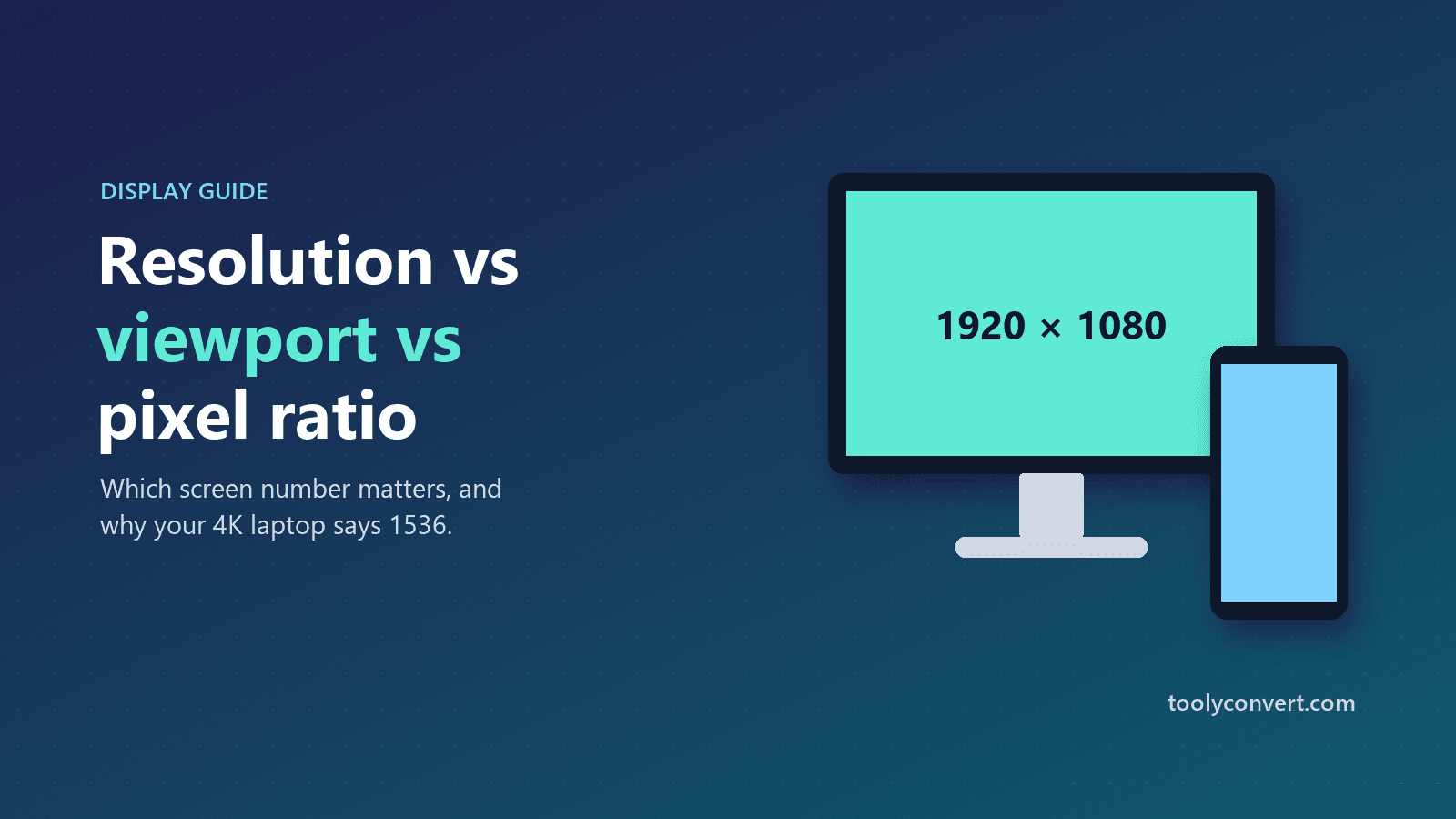
You bought a laptop with a beautiful 4K screen. Then a website tells you your screen resolution is 1536 × 864, and you feel slightly cheated. Or you are a designer, and a client insists the site looks "broken on their big monitor", but their screen is the same size as yours. Or support asks for your "screen resolution" and you are not sure which of three numbers to send.
These moments all come from the same thing: the word "resolution" means different things in different places. Once you understand the difference between physical pixels, CSS pixels, the viewport and pixel ratio, the confusing numbers suddenly make sense, and you know exactly which one to use.
Physical pixels: what the screen is made of
A display is a grid of tiny lights called pixels. A "4K" screen has 3840 pixels across and 2160 down. A Full HD screen has 1920 × 1080. This is the native or physical resolution: the real number of dots on the panel, and the number you see on the box.
| Name | Physical resolution |
|---|---|
| HD (720p) | 1280 × 720 |
| Full HD (1080p) | 1920 × 1080 |
| Quad HD (often called 2K) | 2560 × 1440 |
| 4K Ultra HD | 3840 × 2160 |
Why your screen does not report its full resolution
If everything on a small 4K laptop screen were drawn at one physical pixel per unit, text would be microscopic. So operating systems scale the interface. At 250% scaling, a 3840-pixel-wide screen behaves as if it were 1536 pixels wide, with every element drawn larger and sharper.
Websites see that scaled size. In web terms, those scaled units are called CSS pixels, and they are what your browser reports as the screen resolution. Nothing is wrong with your laptop: the extra physical pixels are still there, making text and images crisper.
Device pixel ratio: the bridge between the two
The device pixel ratio (DPR) is the number of physical pixels used for each CSS pixel in one direction.
- DPR 1: one physical pixel per CSS pixel. Common on older and budget monitors.
- DPR 1.25 or 1.5: typical of Windows laptops with scaling at 125% or 150%.
- DPR 2 or 3: Retina Macs and most modern phones.
The maths is simple: CSS resolution × DPR = physical resolution. A phone that reports 390 × 844 with a DPR of 3 has a real panel of 1170 × 2532.
The viewport: what a web page can actually use
The viewport is the area inside the browser window where the page is drawn, excluding toolbars, tabs and scrollbars. It changes whenever you resize the window, open a sidebar, or zoom the page.
This is the most important number for anyone who builds websites, because responsive layouts react to the viewport, not the screen. A 1920-pixel-wide monitor with the browser at half width gives a viewport of about 950 pixels, and the site will show its tablet layout.
It also explains a classic support mystery. "The site looks broken on my monitor" often means the browser window is not maximised, or the page is zoomed to 125%, which shrinks the viewport in CSS pixels.
Which number should you use?
| Situation | The number that matters |
|---|---|
| Buying a monitor, choosing a wallpaper | Physical resolution |
| Designing or testing a responsive website | Viewport width |
| Preparing sharp images for high-DPI screens | CSS size × DPR |
| Gaming and video playback | Physical resolution and refresh rate |
| Writing a bug report | All of them |
The Screen Resolution Checker shows all of these at once, read straight from your browser: the screen resolution in CSS pixels, the physical pixels, the viewport, the pixel ratio, the aspect ratio (shown as a familiar name like 16:9 alongside the exact ratio), colour depth and orientation. It also measures your refresh rate and checks for HDR and wide-colour support. Copy All puts everything on your clipboard for a support ticket.
Refresh rate: the other number gamers care about
Resolution is how many pixels there are; refresh rate is how many times per second the picture updates. Standard screens run at 60 Hz, while gaming and high-end phones often run at 120 Hz, 144 Hz or more, which makes motion feel smoother.
A surprisingly common problem is a new high-refresh monitor running at 60 Hz because the setting was never changed or the cable does not support the higher rate. Measuring it takes a second, and if it reads 60 when you paid for 144, check your display settings and cable.
Choosing a monitor or laptop screen
If you are buying a screen, resolution only makes sense together with its size. The same 2560 × 1440 looks razor-sharp on a 27-inch monitor and noticeably softer stretched across a 32-inch one. As a rough guide, many people find Full HD comfortable up to about 24 inches, Quad HD at 27 inches, and 4K at 27 inches and above, where scaling keeps text a readable size while making it much crisper.
Aspect ratio matters too. A 16:10 laptop screen gives you a little more vertical space for documents and code than 16:9, and ultrawide 21:9 monitors suit spreadsheets, video editing and games that support them.
What this means for designers and developers
- Design for viewport widths, not device names. There are thousands of devices, but layouts only need to work across a range of widths. Test around 375, 768, 1024 and 1280 CSS pixels.
- Serve sharp images to high-DPI screens. An image displayed at 400 CSS pixels needs about 800 physical pixels to look crisp on a DPR 2 screen. Use
srcsetto offer larger versions, and keep file sizes reasonable with the Image Resizer. - Use vector graphics where possible. Icons and logos in SVG stay perfectly sharp at any pixel ratio, and they can even be animated with a few lines of CSS, as our guide to animating SVG with CSS shows.
- Reserve space for images so layouts do not jump as they load; our Core Web Vitals guide explains why layout shifts matter.
- Remember zoom and accessibility. People zoom pages to 150% or 200% to read comfortably, which shrinks the viewport dramatically. A layout that works at small widths works for them too.
When building mockups, the Placeholder Image Generator helps you test layouts at exact sizes before real images arrive; our placeholder images guide covers common dimensions.
Frequently confused, now clear
"My 4K screen says 1536 wide." That is the scaled CSS width at 250%. The physical pixels are all still in use.
"My phone's resolution is only 390 pixels?" In CSS pixels, yes. With a DPR of 3, the real panel is 1170 pixels wide.
"Why does the viewport change when I zoom?" Zooming makes each CSS pixel larger, so fewer fit in the window.
"Can a website tell my screen size in inches?" No. Browsers do not reveal physical dimensions, so any inch figure on a website is a guess.
One quick check before your next support call
The next time someone asks for your screen resolution, or you are testing a layout, open the Screen Resolution Checker, click Copy All and paste the result. It gives the other person every number they could need, and saves a long back-and-forth about which "resolution" they meant.